How to Switch from iPhone 16 to iPhone 17e in South Africa Without Losing WhatsApp Chats, Photos or Banking Apps
Quick answer
Upgrading to the iPhone 17e from an iPhone 16 is straightforward if you prepare properly. Here’s how South African users can move data, preserve WhatsApp chats, and get banking apps working again.
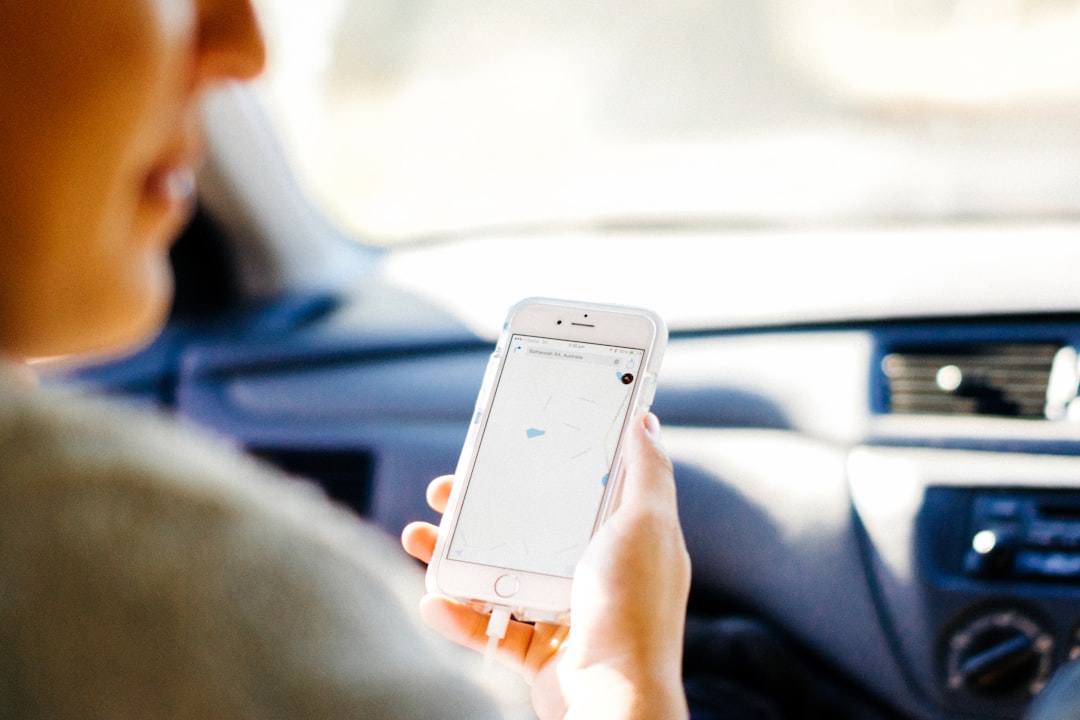
How to switch from iPhone 16 to iPhone 17e in South Africa without losing your WhatsApp chats, photos, and banking apps
Upgrading from an iPhone 16 to the new iPhone 17e should be a smooth process, but only if you do a few important things before you start. The good news is that Apple’s transfer tools are excellent, and if you prepare properly, you can move your data to your new iPhone South Africa users rely on without losing your WhatsApp history, photo library, or access to banking apps.
For South Africans, there are a few extra things to keep in mind too: mobile data costs on Vodacom, MTN, Telkom, Cell C, and Rain, banking app security checks, and the importance of having a stable Wi-Fi connection during the transfer. Here’s the safest way to switch from iPhone to iPhone 17e.
1. Back up your iPhone 16 first
Before you even open the box of your iPhone 17e, make a full backup of your iPhone 16. This gives you a safety net if anything goes wrong.
- Use iCloud Backup: Go to Settings > [your name] > iCloud > iCloud Backup and tap Back Up Now.
- Or back up to a computer: Use a Mac or Windows PC with Finder or iTunes/Finder sync support.
- Check your iCloud storage: If your backup is too large, you may need to free up space or buy more iCloud storage for a month.
For most users, iCloud is the easiest option. If you have lots of photos, videos, and app data, make sure the backup completes fully before moving on.
2. Make sure WhatsApp is backed up correctly
If you want to transfer WhatsApp chats iPhone SA style without losing anything, you need both a recent iCloud backup and the correct WhatsApp settings on your old phone.
- Open WhatsApp on your iPhone 16.
- Go to Settings > Chats > Chat Backup.
- Tap Back Up Now.
- Turn on Include Videos if you want your videos saved too.
WhatsApp on iPhone uses iCloud for backups, so make sure you are signed into the same Apple ID on both phones and that iCloud Drive is enabled. If you use a lot of WhatsApp media, do this on Wi-Fi to avoid burning through your mobile data.
Important: Do not delete WhatsApp from the old phone until you have successfully restored it on the iPhone 17e.
3. Prepare for a fast transfer with Quick Start
The easiest way to move data to new iPhone South Africa buyers is via Quick Start. This is Apple’s built-in wireless transfer method, and it works very well when both phones are nearby.
Here’s how to do it:
- Turn on your iPhone 17e and place it next to your iPhone 16.
- Make sure both phones are connected to power.
- Follow the on-screen setup prompts on the iPhone 16.
- Use your old phone to scan the animation on the new one.
- Choose Transfer from iPhone when prompted.
Quick Start can move your settings, apps, messages, photos, and more. If your Wi-Fi is unstable, this is still usually better than trying to restore everything over mobile data. If you are on Rain or a capped mobile plan, definitely avoid large downloads over cellular data.
4. Keep your photos and videos safe
Your photos are often the biggest part of the transfer. If you use iCloud Photos, your library should sync automatically once you sign in on the iPhone 17e. If you do not use iCloud Photos, a full device transfer via Quick Start or an iCloud backup restore will bring them across.
- Check that Settings > Photos > iCloud Photos is enabled if you use Apple’s cloud library.
- Leave both phones on Wi-Fi and charging until the sync is complete.
- Open the Photos app on the iPhone 17e and wait for the library to finish downloading.
If you have thousands of photos and videos, the transfer may take time. Don’t panic if your new phone shows only part of your library at first.
5. Move your apps, including banking apps
Most apps will move across automatically during setup, but banking apps often need extra verification. This is normal and is part of your bank’s fraud protection.
In South Africa, apps from major banks and payment services may require one or more of the following after the move:
- Logging in again with your username and password.
- Receiving an OTP by SMS or in-app notification.
- Re-registering the device in the app.
- Using facial recognition or a selfie check.
Before you start the transfer, make sure your SIM is active and can receive SMS messages on Vodacom, MTN, Telkom, Cell C, or Rain Mobile services that support SMS. If your banking app uses device-based authentication, keep your old iPhone 16 nearby until the new phone is fully approved.
Tip: Some banking apps may temporarily block access if they detect a new device. This is normal. Follow the app’s on-screen instructions, and if needed, contact your bank’s support line from another device.
6. Use your SIM or eSIM carefully
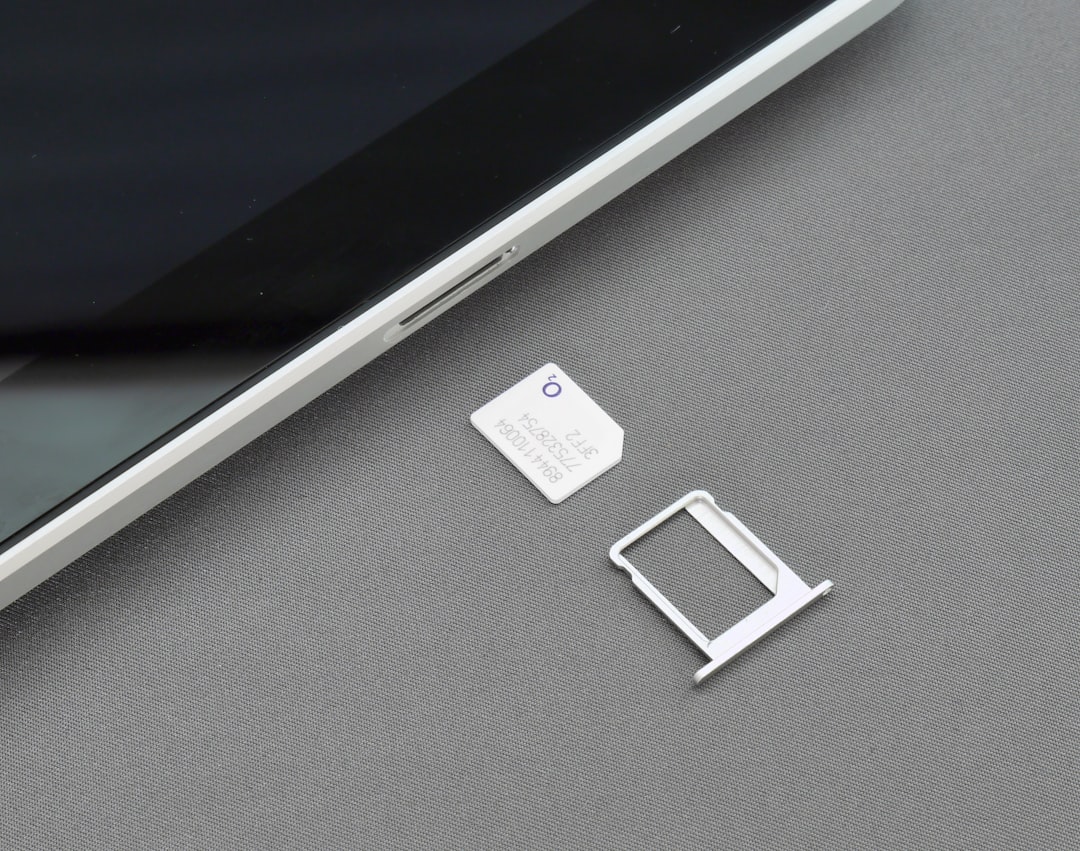
If your iPhone 16 uses a physical SIM, you can usually move it to the iPhone 17e once setup is done. If you use eSIM, your carrier may need to reissue or transfer the eSIM profile.
- For physical SIMs: power off both phones, move the SIM, then restart the iPhone 17e.
- For eSIM: contact your network if the transfer does not happen automatically.
South African networks handle eSIM differently, so if you are on Vodacom, MTN, Telkom, Cell C, or Rain, check your provider’s app or support channels if the line does not activate immediately.
7. Sign into Apple services and verify everything
Once your iPhone 17e is set up, sign into your Apple ID and confirm the essentials:
- iMessage and FaceTime are active.
- iCloud Photos is syncing.
- WhatsApp opens and restores your chats.
- Banking apps are logged in and verified.
- Contacts, notes, and calendars are present.
If something is missing, give the phone time to finish syncing before assuming it failed. Many transfers continue in the background for hours, especially if your library is large.
8. Don’t erase the iPhone 16 too quickly
It is tempting to wipe your old phone immediately, but wait until you have checked everything on the iPhone 17e. Make sure:
- WhatsApp chats are restored.
- Your photos and videos are visible.
- All banking apps work.
- Your SIM or eSIM is active.
- You can receive calls and SMS messages.
Only then should you sign out of Apple ID on the old device and erase it. If you plan to trade it in, a clean reset will also help you get a better resale value.
9. What to do if WhatsApp does not restore
If your WhatsApp chats do not appear on the iPhone 17e, don’t uninstall the app right away. First, check the following:
- You are using the same phone number as on the old device.
- You are signed into the same Apple ID used for the backup.
- iCloud Drive is enabled.
- There is enough free space on the new phone.
If the backup still does not restore, delete WhatsApp from the new phone, reinstall it, and try again. In most cases, the issue is caused by a mismatch in Apple ID, phone number, or iCloud settings.
10. South African practical tips before you switch
A few local tips can save you time and frustration:
- Do the transfer on Wi-Fi to avoid mobile data charges.
- Charge both phones fully before starting, especially if load shedding is affecting your routine.
- Keep your SIM active so OTPs and banking verifications arrive.
- Update apps first on the iPhone 16 before transferring, especially WhatsApp and banking apps.
- Check your bank’s fraud alerts so the new device doesn’t trigger unnecessary blocks.
If you are switching during a busy weekday, do it when you have time to troubleshoot. A weekend morning is often ideal.
Final thoughts
To switch from iPhone to iPhone 17e safely, the formula is simple: back up first, restore with Quick Start or iCloud, verify WhatsApp, and re-authenticate your banking apps. For most South African users, the process is quick and reliable as long as you use Wi-Fi, keep your SIM active, and give the phone enough time to finish syncing.
With the right preparation, moving from an iPhone 16 to the iPhone 17e should feel less like a risky migration and more like a smooth upgrade. Once everything is in place, you can enjoy your new phone with your chats, photos, and apps exactly where you left them.