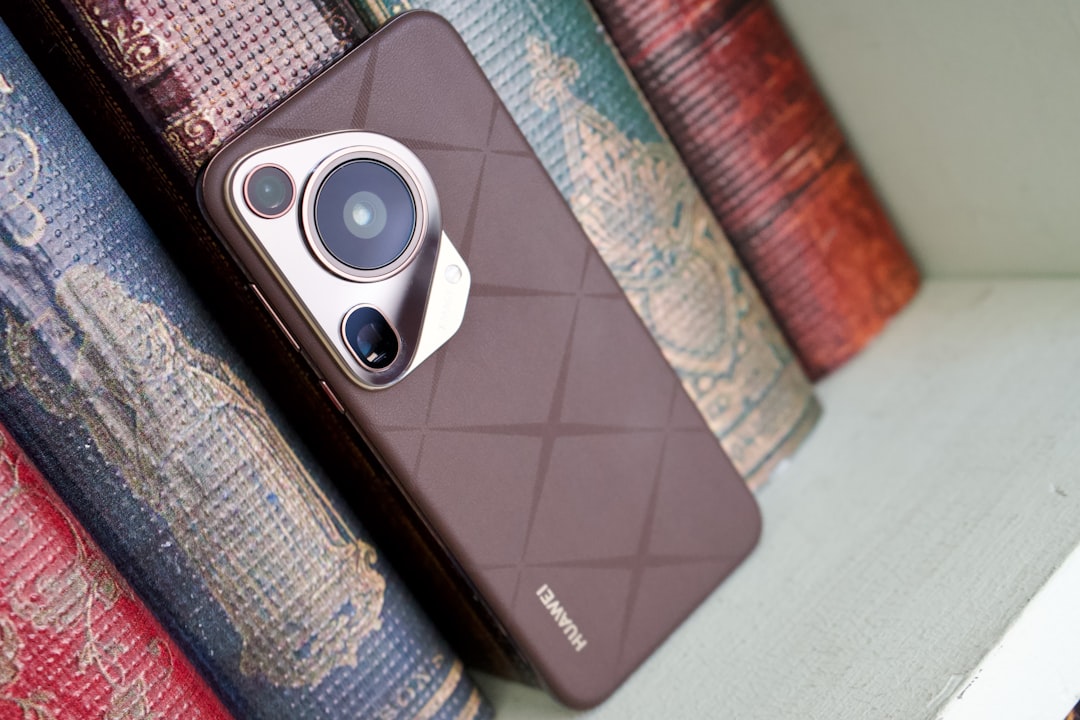
How to Turn the Huawei Pura 80 Pro Into a Productivity Powerhouse for South African Business Users
Quick answer
The Huawei Pura 80 Pro is more than a premium camera phone — with the right setup, it can become a serious business tool. Here’s how South African professionals can optimise it for calls, email, documents and travel.
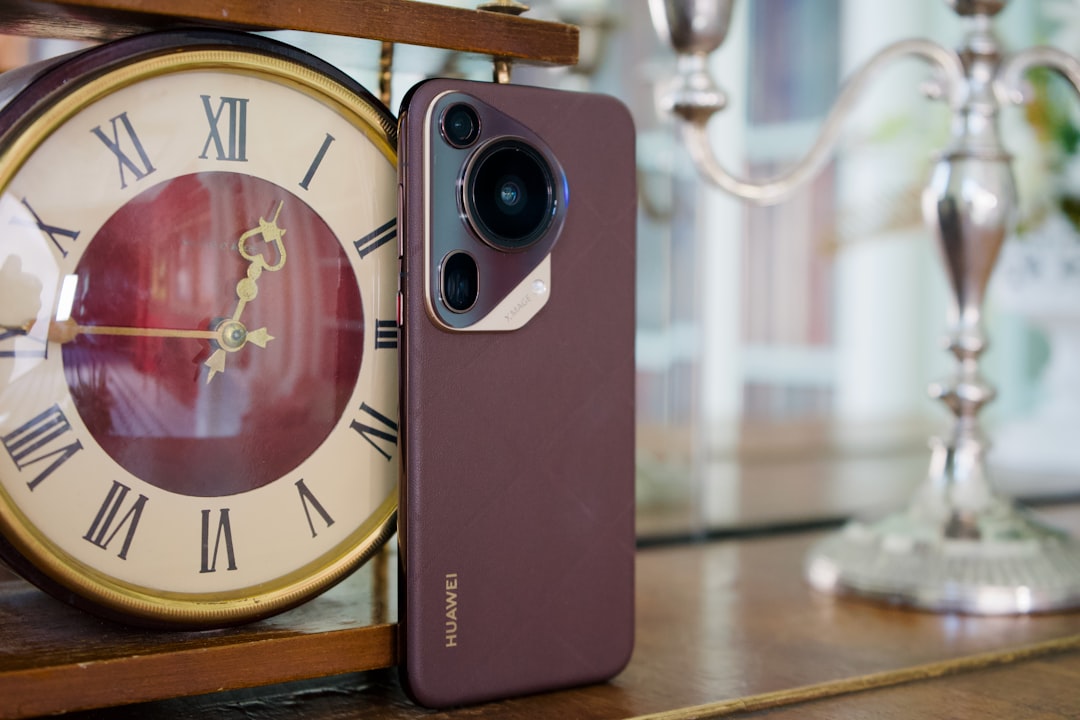
How to turn the Huawei Pura 80 Pro into a productivity powerhouse for South African business users
The Huawei Pura 80 Pro is one of the most capable premium phones you can buy in South Africa right now, and it is especially appealing to professionals who want a sleek device that can handle calls, email, documents and travel without fuss. With the right Huawei Pura 80 Pro business settings, you can turn it into a reliable daily companion for meetings, remote work and life on the move.
For South African users, productivity is not just about speed. It is also about battery life during load shedding, stable connectivity on Vodacom, MTN, Telkom, Cell C or Rain, and making sure your phone is easy to use when you are moving between the office, home and the airport. Here is how to set up the Huawei Pura 80 Pro productivity experience properly.
1. Start with a clean, work-friendly home screen
The first step is to remove clutter. A busy home screen slows you down and makes it harder to find the tools you need during the workday.
- Keep only your core business apps on the first screen: email, calendar, notes, cloud storage, banking and Teams or Zoom.
- Use folders for less frequently used apps such as travel, expense tracking and scanner tools.
- Add a calendar widget so you can see meetings at a glance.
- Place your email widget near the top for quick access to urgent messages.
If you work across multiple accounts, create a separate work-focused folder and avoid mixing in entertainment apps. This small change makes the Huawei Pura 80 Pro feel much more like a business device.
2. Optimise call settings for clear business communication
Calls still matter in South African business, especially when negotiating with suppliers, coordinating teams or dealing with clients in different provinces. To improve call quality on the Huawei Pura 80 Pro South Africa setup, check these settings first.
- Enable Wi-Fi calling if your network and plan support it, especially useful in offices with strong Wi-Fi but weak signal.
- Use dual SIM carefully if you carry two numbers, such as a personal line and a work line. Label them clearly so you do not miss important calls.
- Turn on noise reduction during calls if available in the phone’s sound or accessibility settings.
- Set a strong ringtone and vibration pattern so you do not miss calls in meetings or on the road.
For frequent travellers, it is smart to keep one SIM on a stronger network for the areas you visit most often. Vodacom and MTN often perform well in many urban and business corridors, while Telkom, Cell C and Rain can be excellent depending on location, coverage and package. If you travel between Johannesburg, Cape Town, Durban and smaller towns, test your signal patterns before relying on one network alone.
3. Set up email for speed, focus and fewer distractions
Email is still the backbone of business communication, and the Huawei Pura 80 Pro productivity experience improves dramatically when your inbox is organised properly.
- Use a dedicated work email app and sign in to only the accounts you need.
- Turn off non-essential notifications so marketing emails do not interrupt meetings.
- Enable priority notifications for messages from key contacts, your boss, clients or suppliers.
- Sync mail, calendar and contacts so new appointments and people appear automatically.
To stay focused, schedule email checks instead of reacting to every alert. A good routine is to review email first thing in the morning, just after lunch and late afternoon. If you use Microsoft Outlook or Gmail, set up signatures with your name, title and mobile number so replies look professional.
4. Make documents easy to read, edit and share
Many South African professionals need to review PDFs, sign forms, edit spreadsheets and share presentations from their phones. The Huawei Pura 80 Pro can handle this well if you prepare it properly.
- Install the document apps you use most, such as PDF readers, office suites and cloud storage services.
- Set your default app for opening PDFs and Word files so documents open instantly.
- Use split-screen mode when comparing a document with email or a browser page.
- Turn on auto-rotate for presentations and spreadsheet work, but keep it off if you prefer a stable reading layout.
For added efficiency, create a folder in your cloud storage for contracts, invoices, travel documents and meeting notes. That way, when a client asks for a file on WhatsApp or email, you can find it quickly instead of searching through downloads. This is one of the simplest Huawei Pura 80 Pro business settings that saves real time.
5. Use travel settings that suit South African business trips
Business travel in South Africa often means long drives, domestic flights, hotel check-ins and patchy signal between cities. The Huawei Pura 80 Pro is well suited to this lifestyle if you configure it for battery efficiency and offline access.
- Enable battery saver when you are on the road or expect a long day away from a charger.
- Download offline maps before travelling to areas with weaker coverage.
- Save boarding passes and booking confirmations in your wallet or documents app for quick access.
- Turn on roaming only when needed if you are travelling outside South Africa, to avoid surprise data charges.
If you rely on navigation for meetings across Gauteng or between provinces, keep location services enabled only for the apps that need them. This helps preserve battery life during a full day of client visits. For frequent flyers, use a compact power bank and a fast charger so you can top up between meetings or at the airport.
6. Improve battery life for the workday
A productivity phone is only useful if it lasts the day. The Huawei Pura 80 Pro is strong on battery, but smart settings can stretch it even further.
- Reduce screen brightness or enable adaptive brightness.
- Use dark mode for long reading sessions and night work.
- Limit background activity for social media and shopping apps.
- Disable always-on features you do not need during working hours.
During load shedding, battery discipline becomes even more important. Keep a charging cable at your desk, in your car and in your laptop bag. If your office has unstable power, a small UPS or power station can also help keep your phone charged through the day.
7. Secure your business data
Security matters just as much as convenience. The Huawei Pura 80 Pro should be set up to protect sensitive emails, client files and banking apps.
- Use a strong PIN, fingerprint unlock and face unlock where appropriate.
- Enable automatic screen lock after a short period of inactivity.
- Keep app permissions tight, especially for camera, microphone, contacts and location.
- Back up your files regularly to cloud storage or a secure external service.
If you handle confidential documents, consider using a separate work profile or secure folder for sensitive apps. That extra layer of protection is useful for consultants, small business owners and executives who carry a lot of client information on their phones.
8. Build a simple productivity routine
The best Huawei Pura 80 Pro productivity setup is not just about settings — it is about habits. Start your day by checking calendar events, urgent email and travel plans. Use notes or task apps to capture action items immediately after calls. Keep document storage tidy, and review your inbox at set times rather than continuously.
For South African business users, the Huawei Pura 80 Pro can be a powerful all-in-one device when configured correctly. It handles communication, document work and travel support very well, especially if you tailor it to your network, your schedule and your security needs. With the right Huawei Pura 80 Pro business settings, you will spend less time managing your phone and more time getting work done.
Whether you are running a small company in Durban, consulting in Sandton or travelling between clients in the Western Cape, the Huawei Pura 80 Pro South Africa setup can be adapted to fit your workday. A few thoughtful tweaks now will pay off in smoother communication, better organisation and a more productive mobile workflow.