How to Switch from iPhone 16 or iPhone 17e to Samsung Galaxy S26 in South Africa

How to switch from an iPhone 16 or iPhone 17e to a Samsung Galaxy S26 in South Africa
If you are ready to switch from iPhone to Samsung South Africa, the good news is that moving from an iPhone 16 or iPhone 17e to the Samsung Galaxy S26 is straightforward if you plan it properly. Samsung’s latest flagship is built to make migration easy, and most of your photos, contacts, messages and even some app data can come across with minimal effort.
This iPhone to Samsung guide is written for South African users, so we will also cover local network setup, eSIM considerations, WhatsApp transfer tips and what to do if you bought your Galaxy S26 on contract from Vodacom, MTN, Telkom, Cell C or Rain.
Before you start: what to check on your iPhone
Before you begin the transfer, make sure your iPhone is updated, charged and backed up. This step is important whether you are moving from an iPhone 16 or the more affordable iPhone 17e.
- Update iOS to the latest version available on your device.
- Back up to iCloud or make a local backup on a Mac or Windows PC.
- Charge both phones to at least 50%, or keep them plugged in.
- Know your Apple ID password because you will need it later.
- Check your WhatsApp number and confirm it is active before moving.
If your iPhone is on contract, make sure your line is active and that you can receive SMS messages. Some banks and apps will send one-time PINs during the transfer process.
Choose the best way to transfer data to Galaxy S26
Samsung’s Smart Switch app is the easiest way to transfer data to Galaxy S26. It supports wired transfer, wireless transfer and PC-based backups. For most users, a cable transfer is the fastest and most reliable option.
Option 1: Transfer with a cable
This is the best choice if you want speed and fewer interruptions. You will need either a USB-C to USB-C cable, or the cable included with your Galaxy S26 and a suitable adapter if needed.
- Turn on the Galaxy S26 and start setup.
- When prompted, choose to copy data from an iPhone.
- Open Smart Switch on the Samsung phone.
- Connect the phones using the cable.
- Follow the on-screen steps to select contacts, photos, videos, messages and apps.
Option 2: Transfer wirelessly
Wireless transfer is convenient if you do not have the right cable, but it can take longer, especially if you have a lot of photos or videos. Make sure both phones stay close together and connected to Wi-Fi.
Option 3: Use iCloud and Google services
If you already sync contacts, calendars and photos with iCloud, you can sign into those services on the Galaxy S26 or move them into Google apps. This is useful if you want a cleaner transition and prefer to organise your new phone around Google services from day one.
How to move your photos, videos and contacts
For most people, photos and contacts are the most important part of the switch. Smart Switch usually handles both well, but it is wise to double-check after setup.
- Photos and videos: Use Smart Switch or Google Photos to ensure your entire gallery is copied.
- Contacts: If your contacts are synced with iCloud, they may appear once you sign into your Google account and import them.
- Calendars and reminders: Sync these through your Apple account or move them into Google Calendar.
- Notes: Export important notes manually if they are not tied to a cloud service.
If you use iCloud Photos, remember that some items may still be stored only in Apple’s cloud. Give the transfer time to complete before wiping your old phone.
Transferring WhatsApp and other messaging apps
For many South Africans, WhatsApp is the most important app to move correctly. The good news is that WhatsApp now supports migration between iPhone and Android more smoothly than before.
- On your iPhone, open WhatsApp and go to Settings.
- Use the official chat transfer option if prompted during Galaxy S26 setup.
- Keep both phones unlocked and connected during the transfer.
- Use the same phone number on the new Samsung phone.
Also remember to sign out of iMessage and FaceTime on your iPhone before fully switching. If you skip this step, some friends may keep sending messages to your old Apple account instead of your new Samsung number.
What to do about your SIM or eSIM in South Africa
South African users should pay special attention to SIM setup, especially if you are moving between devices on Vodacom, MTN, Telkom, Cell C or Rain.
Physical SIM
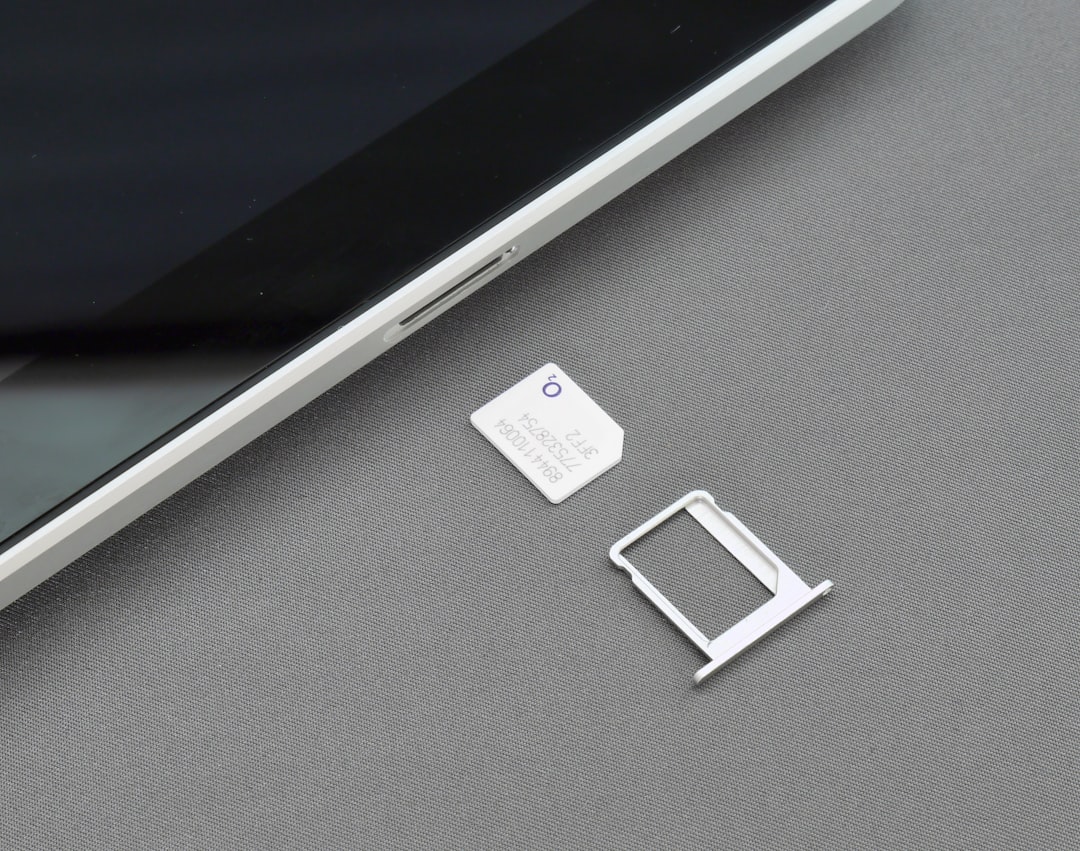
If your iPhone uses a physical SIM, simply move it to the Galaxy S26 once setup is complete. If your new Samsung came with an eSIM or you want to switch to one, contact your network provider to reissue or activate it.
eSIM
If your iPhone 16 or iPhone 17e uses eSIM, you may need to request a new eSIM profile from your network. The process varies by provider:
- Vodacom: Visit the app, website or a store for eSIM reactivation.
- MTN: You may need to scan a new QR code or visit a store.
- Telkom: Check account support or retail assistance for SIM profile changes.
- Cell C: Ask for an eSIM swap or SIM replacement if needed.
- Rain: Confirm whether your current plan supports the device and network setup you want.
If you rely on mobile banking, make sure your number is active before you change SIM settings, since some banks link authentication to your SIM.
Reinstalling apps and signing back in
Once your data is moved, you will need to reinstall apps from the Google Play Store. Some apps will remember your login, while others will ask you to sign in again.
- Banking apps: Re-register if required and verify your device.
- Streaming apps: Sign in again to Netflix, Showmax, Spotify and similar services.
- Cloud storage: Install Google Drive, OneDrive or Dropbox if you use them.
- Apple services: You can still use Apple Music on Android, but iCloud-specific features may be limited.
If you use two-factor authentication apps, move them carefully. Some apps require manual migration or backup codes, so check before deleting anything from your iPhone.
What about accessories and charging?
The Galaxy S26 uses USB-C, so the charging experience is generally simpler than older iPhone setups. If you already own a USB-C charger, you may not need to buy much else.
- Keep your fast charger if it supports modern USB-C charging standards.
- Buy a Samsung-compatible case to protect the new phone from day one.
- Consider a screen protector if you travel often or use your phone outdoors.
- Check wireless charging if you already have a pad at home or in the car.
South African users who commute daily or spend time in areas with load-shedding should also consider a reliable power bank. A flagship like the Galaxy S26 deserves proper battery support, especially if you are often away from a wall socket.
Should you keep your iPhone as a backup?
Yes, if you can. Keeping your iPhone 16 or iPhone 17e for a week or two after switching gives you time to confirm that everything moved correctly. It is especially useful if you still need to recover a file, check an old message thread or verify a banking login.
Once you are happy, sign out of your Apple accounts, remove your SIM or eSIM, and factory reset the iPhone before selling, trading in or handing it down. That is the safest way to protect your personal data.
Final tips for a smooth switch
The easiest way to move from Apple to Samsung is to take your time and do the important tasks in order: back up first, transfer with Smart Switch, confirm WhatsApp, then sort out your SIM and accounts. That approach avoids most headaches.
If you are upgrading to the Galaxy S26 on contract, ask your retailer or network whether they can help with setup in-store. Many South Africans prefer a quick assisted transfer because it reduces the risk of losing photos, chats or banking access.
In short, switching from an iPhone 16 or iPhone 17e to Samsung’s latest flagship is very doable. With the right preparation, you can move your digital life across in one afternoon and start enjoying the Galaxy S26 with minimal disruption.