How to Set Up iPhone 17e for Network Hopping in South Africa: eSIM, Dual SIM and Data Settings for Frequent Travellers
Quick answer
The iPhone 17e is a smart pick for South Africans who move between cities, borders and networks. Here’s how to set up eSIM, dual SIM and data settings for seamless network hopping.
Why the iPhone 17e is ideal for South African travellers
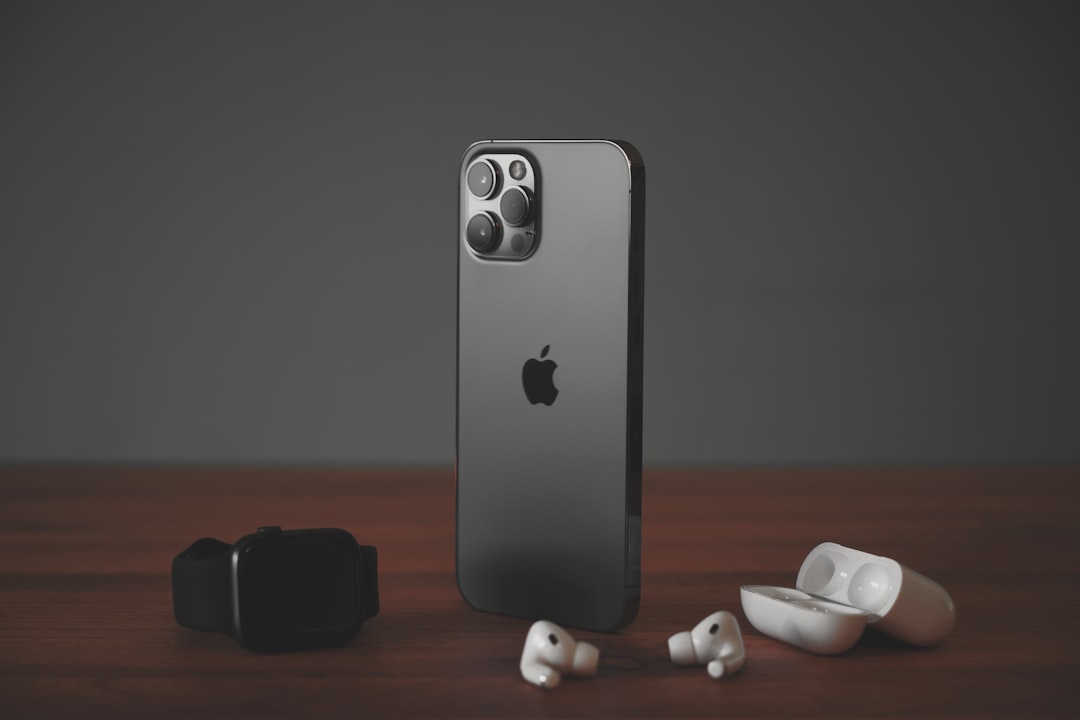
The iPhone 17e is one of the most practical phones for South Africans who travel often, whether that means commuting between provinces, crossing into neighbouring countries, or simply needing backup connectivity when one network is patchy. With support for eSIM and dual SIM, it gives you flexibility to keep more than one mobile line active and switch data usage when needed.
That matters in South Africa, where coverage can vary a lot between Vodacom, MTN, Telkom, Cell C and Rain depending on the area, building, or route you are on. If you know how to set up the iPhone 17e properly, you can reduce dropped connections, keep work and personal numbers separate, and stay online more reliably.
Understanding eSIM and dual SIM on the iPhone 17e
The iPhone 17e supports modern dual-line use, which means you can use two mobile services on one device. In practical terms, this usually means one physical SIM and one eSIM, or two eSIMs depending on the carrier setup and region.
eSIM is a digital SIM profile you download from your network provider instead of inserting a plastic card. Dual SIM lets you keep two lines active, so you can use one number for calls and another for data, or keep a backup network ready when your primary network struggles.
For South African users, this is especially useful if you want to combine, for example, a Vodacom number for broad coverage with a Telkom or Rain data deal in areas where it makes sense, or keep an MTN line active for business while using a second line for travel data.
Before you start: what you need
Before setting up your iPhone 17e eSIM South Africa profile, make sure you have the following:
- An unlocked iPhone 17e or a device compatible with your chosen network
- A SIM card from your primary network, or an eSIM activation QR code
- Your network account details, including any activation PIN or OTP process
- Wi-Fi access for the initial eSIM setup
- Enough battery power, ideally above 50%
It is also worth checking whether your chosen network supports eSIM activation on your contract or prepaid package. In South Africa, support can differ by product type, so it is best to confirm with Vodacom, MTN, Telkom, Cell C or Rain before you remove your old SIM or cancel anything.
How to set up eSIM on iPhone 17e in South Africa
Setting up an eSIM on the iPhone 17e is straightforward if your provider has already issued the activation details.
Method 1: Scan a QR code from your network
- Open Settings
- Tap Mobile Service or Cellular
- Select Add eSIM
- Choose Use QR Code
- Scan the QR code provided by your network
- Follow the on-screen prompts to activate the line
Once activated, your iPhone 17e should label the line so you can identify it later, such as “Work”, “Travel” or “Vodacom Data”.
Method 2: Transfer from another iPhone
If you are moving from an older iPhone, you may be able to transfer your mobile plan directly during setup. This is helpful if you are upgrading and want minimal downtime. The option may appear automatically during initial setup or later in the Mobile Service menu.
Method 3: Network app or in-store activation
Some South African users may need to activate eSIM through a carrier app, website, or store visit. This can be common for contract customers or when additional verification is required. If you are switching to a new line for travel, ask the provider whether the eSIM can be issued instantly or if there is a wait time.
How to use dual SIM on iPhone 17e
Once both lines are active, the iPhone 17e dual SIM South Africa setup lets you control which line is used for calls, messages and data.
Set your default voice line
- Go to Settings
- Tap Mobile Service
- Select Default Voice Line
- Choose the number you want to use most often
This is useful if you want your business number to handle outgoing calls while your personal number stays separate.
Choose your default data line
- Go to Settings
- Tap Mobile Service
- Select Mobile Data
- Pick the SIM or eSIM you want to use for internet access
This is the most important step for travellers. If one network has better coverage on the N1, in rural areas, or in a specific province, you can assign data to that line and keep moving without manually swapping SIM cards.
Turn on data switching if needed
The iPhone 17e can also allow automatic switching between lines for better connectivity, depending on the carrier and your settings. If you want the phone to fall back to the secondary line when the primary one is weak, check the Allow Mobile Data Switching option in Mobile Service settings.
Be careful with this feature if you have limited data bundles. Automatic switching can help in emergencies, but it can also use your backup line’s data faster than expected. For frequent travellers, it is often best to keep a close eye on usage.
How to switch networks on iPhone 17e
If you are searching for how to switch networks on iPhone 17e, the answer depends on whether you want to change the active data line or change the network manually.
Switch the data line
The simplest way is to go to Settings > Mobile Service > Mobile Data and select the line you want. This is the fastest way to move from one network to another without removing anything from the phone.
Manually select a network
If you are in an area with weak automatic selection or you want to test coverage, you can manually choose a carrier:
- Open Settings
- Tap Mobile Service
- Select the relevant line
- Tap Network Selection
- Turn off automatic selection
- Choose the available network you want to use
This can help when roaming or troubleshooting poor reception, but remember that manual selection may not always improve speeds if the chosen network is congested.
Practical tips for South African coverage
South African travellers should think strategically about network choice. Vodacom and MTN often remain strong all-round choices for broad national coverage, while Telkom, Cell C and Rain can be attractive for value, specific areas, or data-heavy use. The best setup depends on where you live, work and travel.
- Use one line for calls and another for data to avoid losing both services at once
- Keep a backup eSIM ready for business trips or long drives
- Test your main route before relying on a new network for work
- Rename each line clearly so you do not mix up data and voice services
- Monitor roaming costs if you travel into Namibia, Botswana, Lesotho, Eswatini or Mozambique
If you frequently travel across provinces, it can also help to keep one line on a flexible prepaid package and the other on a contract or data bundle that suits your usage pattern.
Troubleshooting common setup problems
If your iPhone 17e does not activate the eSIM immediately, check the following:
- Make sure you are connected to Wi-Fi
- Confirm the QR code has not already been used
- Restart the phone after activation
- Check whether your network has completed the SIM provisioning
- Update iOS to the latest version
If signal is poor after activation, toggle Airplane Mode on and off, reset network settings only if needed, and test both lines separately. If the issue continues, your provider may need to refresh the account or issue a new eSIM profile.
The smartest setup for frequent travellers
For most South Africans, the best iPhone 17e setup is to keep one line as the primary voice number and use the second line as a data backup or travel SIM. That way, if your main network struggles in a particular area, you can switch data quickly without changing phones or carrying a second device.
With the right configuration, the iPhone 17e becomes a powerful travel companion: easy to manage, flexible across networks, and ideal for staying connected on South Africa’s roads, in airports, and across borders. If you travel often, taking 10 minutes to configure eSIM and dual SIM properly can save you a lot of frustration later.