How to Fix Xiaomi Redmi Note 14 Pro Problems in South Africa: SIM Setup, Slow Data and App Issues
Quick answer
Bought a Xiaomi Redmi Note 14 Pro and running into SIM, data or app problems? Here’s a South Africa-focused guide to getting it working properly. We cover quick fixes, network settings and the most common first-time buyer issues.
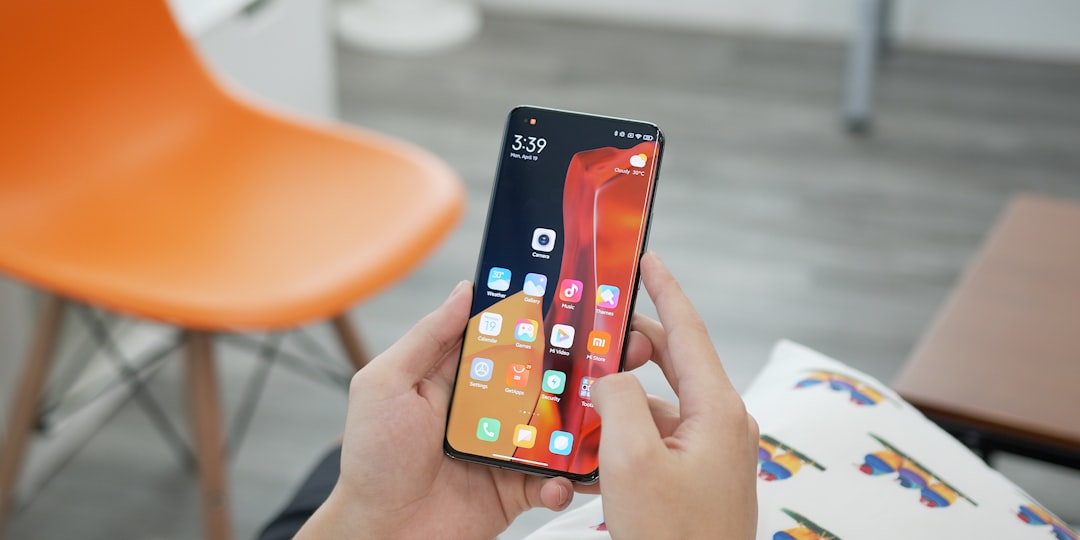
Xiaomi Redmi Note 14 Pro problems in South Africa: what first-time buyers should know
The Xiaomi Redmi Note 14 Pro is a popular mid-range phone for South African buyers who want strong features without flagship pricing. But like many new Android phones, it can be frustrating out of the box if your SIM does not register properly, mobile data feels slow, or apps keep misbehaving.
If you are searching for Xiaomi Redmi Note 14 Pro problems South Africa, you are not alone. Most issues are caused by setup steps, network settings, app permissions, or a simple software update that has not been installed yet. The good news is that most of these problems can be fixed at home, whether you are on Vodacom, MTN, Telkom, Cell C or Rain.
1. Fixing Xiaomi Redmi Note 14 Pro SIM setup problems
One of the most common complaints from first-time buyers is that the phone does not detect the SIM card, cannot make calls, or shows “No service”. If you are dealing with Xiaomi Redmi Note 14 Pro SIM setup issues, start with the basics.
Check the SIM card and tray
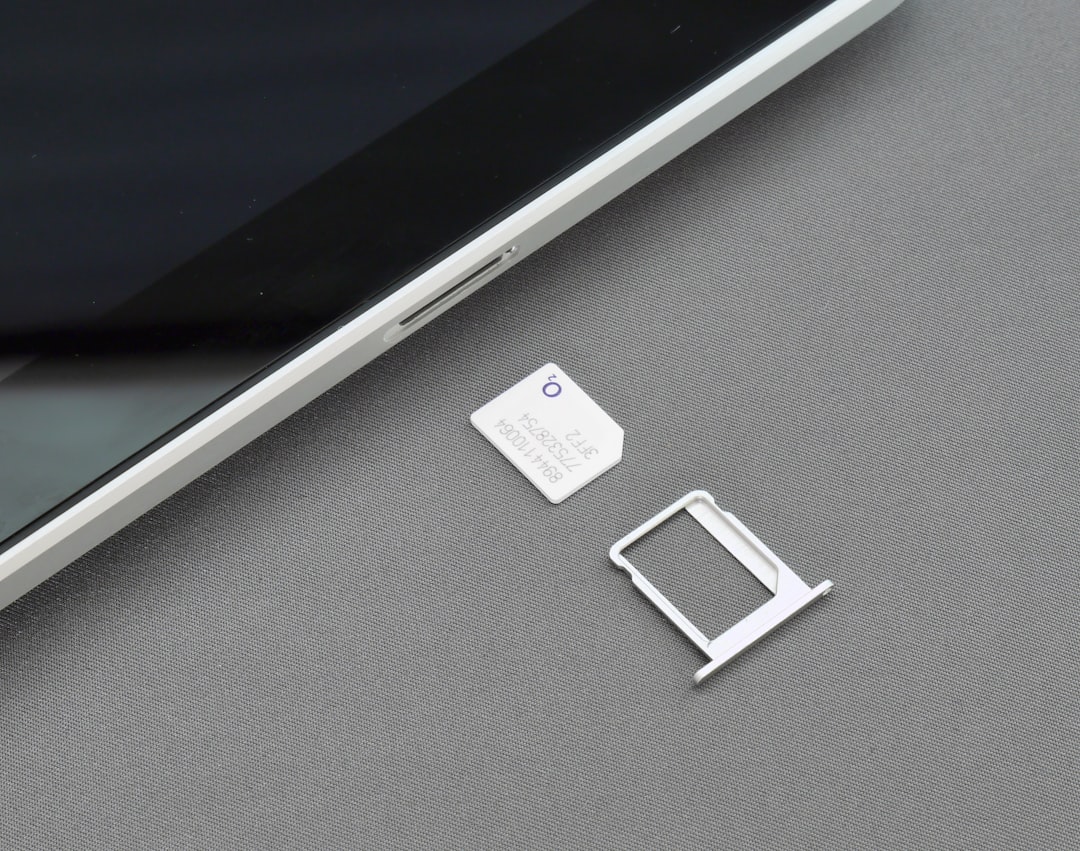
Make sure the SIM is inserted correctly in the tray. The Redmi Note 14 Pro usually supports dual SIM, but the card must be seated properly. If you are using a nano-SIM, confirm that it was cut cleanly and is not damaged. A bent or badly cut SIM can cause intermittent detection issues.
Power off the phone before removing or reinserting the SIM tray. After placing the SIM back in, restart the device and wait a minute or two for the network to register.
Test the SIM in another phone
If the Redmi still says no SIM or no service, test the SIM in another phone. If it also fails there, the issue may be with the SIM itself rather than the Xiaomi device. South African networks often replace faulty SIMs quickly at a Vodacom, MTN, Telkom, Cell C or Rain store, usually with ID verification.
Check network compatibility and activation
New SIMs sometimes need activation, especially prepaid replacements or eSIM-to-physical SIM changes. If you recently ported your number, network registration can take time. In some cases, the phone may detect the SIM but not connect properly until the line is fully activated.
Go to Settings > SIM cards & mobile networks and confirm the SIM is turned on. If you have dual SIMs, make sure the correct one is set as the default for calls, SMS and mobile data.
Reset mobile network settings
If your SIM is detected but the phone still has issues, reset the network settings. On Xiaomi phones, this can clear incorrect APN or carrier settings that may have been imported during setup. Look for Settings > Connection & sharing > Reset Wi-Fi, mobile networks, and Bluetooth.
After the reset, restart the phone and recheck your SIM and mobile data. You may need to re-enter your APN details manually, especially on smaller or prepaid network profiles.
2. Xiaomi Redmi Note 14 Pro slow data fix for South African networks
Another common issue is slow browsing, buffering videos, or apps taking too long to load. If you are looking for a Xiaomi Redmi Note 14 Pro slow data fix, the cause is often one of four things: poor signal, incorrect APN settings, data saver restrictions, or network congestion.
Make sure you are on the right network mode
Go to Settings > SIM cards & mobile networks and check the preferred network type. For most South African users, 4G/LTE should be enabled. If you are in an area with weak 5G coverage, forcing 5G can sometimes make the connection worse rather than better.
Try switching between 4G and 5G to see which is more stable in your area. On networks like Rain, coverage and speed can vary by location, so testing different modes is important.
Check APN settings
Incorrect APN settings can cause very slow data or no internet at all. If your phone was imported, reset APN settings to default or enter them manually based on your network provider. This is especially useful for prepaid users on Cell C, Telkom or MTN where the phone may not auto-detect the right profile.
Go to Settings > SIM cards & mobile networks > Access Point Names and select the correct APN. If you are unsure, visit your network’s support page or ask at a store for the current APN details. A wrong APN can make data appear connected while apps still fail to load properly.
Disable data saver and battery restrictions
Xiaomi’s battery management is aggressive by default. That is great for standby time, but it can slow background downloads, delay notifications and make apps seem unreliable. Check whether Data Saver is on, and go to Battery > App battery saver to allow important apps to run normally.
If WhatsApp, Gmail, banking apps or social media are slow to update, remove battery restrictions for those apps. This often fixes the impression that mobile data itself is slow when the real problem is background access being limited.
Test in different locations
South African mobile networks can vary a lot by suburb, building and even floor level. If your Redmi Note 14 Pro is slow at home but fast outside, the issue may be coverage rather than the phone. Test the device in another area, or compare it with another SIM on the same phone.
If one network is consistently poor in your area, consider whether a switch to another provider could help. For example, Vodacom and MTN may perform better in some suburbs, while Telkom or Cell C may be more cost-effective in others. Rain can be excellent in specific coverage zones but less consistent elsewhere.
3. Fixing app problems on the Redmi Note 14 Pro
App crashes, freezing, login errors and notification delays are common on new phones, especially when migrating from another Android device. If apps are giving trouble on your Redmi Note 14 Pro, try these steps.
Update the phone and apps
Start by checking for a system update. Xiaomi often releases early software patches that improve stability, network performance and app compatibility. Go to Settings > About phone > System update and install any available update.
Then open the Google Play Store and update all apps. Older app versions may not work well with the latest Android or Xiaomi interface.
Clear cache for problem apps
If one app keeps crashing, go to Settings > Apps > Manage apps, select the app and clear its cache. This can fix display glitches, login loops and loading errors without deleting your data. If the problem continues, clear storage only if you are comfortable signing in again.
Check app permissions
Some apps need access to location, contacts, files or notifications to work properly. If an app seems broken, check Settings > Apps > Permissions. This is especially important for banking apps, delivery apps and ride-hailing services used widely in South Africa.
Turn off aggressive battery optimisation for key apps
To make sure messaging and banking apps stay active in the background, allow them to run without restrictions. Xiaomi’s power saving can delay push notifications, which may look like app failure when it is really a background control issue.
4. Extra tips for South African buyers
If you bought the phone on contract or from a local retailer, keep proof of purchase in case you need warranty support. South African consumers should also check whether the device is a local model with proper network support and warranty coverage. Grey imports can work well, but they may need manual setup and may not always receive local support as smoothly as official units.
If you are switching from another phone, back up your WhatsApp chats, photos and contacts before migrating. This helps avoid confusion when troubleshooting because you can test the phone cleanly without worrying about data loss.
Also remember that a phone can be perfectly fine while the network or SIM is the real issue. Before assuming the Redmi Note 14 Pro is faulty, test with another SIM, another area, and another APN profile.
5. When to visit a store or ask for support
If you have tried SIM reseating, network resets, APN checks, updates and app fixes, but the phone still cannot connect properly, it may be time to get support. Visit your network provider or the retailer where you bought the phone. If the handset is under warranty and the SIM slot, modem or software is genuinely faulty, they can advise on repair or replacement.
For most users, though, the Redmi Note 14 Pro is easy to stabilise once the initial setup is done correctly. A few minutes of network and app tuning can turn a frustrating first day into a smooth daily experience.
Bottom line
The most common Xiaomi Redmi Note 14 Pro problems South Africa buyers face are usually simple to fix. Start with the SIM, confirm the network settings, check your APN, and relax Xiaomi’s battery restrictions for important apps. With the right setup, the Redmi Note 14 Pro should perform well on South African networks and deliver the value first-time buyers expect.