How to Set Up the Samsung Galaxy S26 Ultra for Business in South Africa: Security, Battery and Productivity Tips
Quick answer
The Samsung Galaxy S26 Ultra is a powerhouse for work, but the right setup makes it far more secure, efficient and productive. Here’s how South African professionals can configure it for business use.
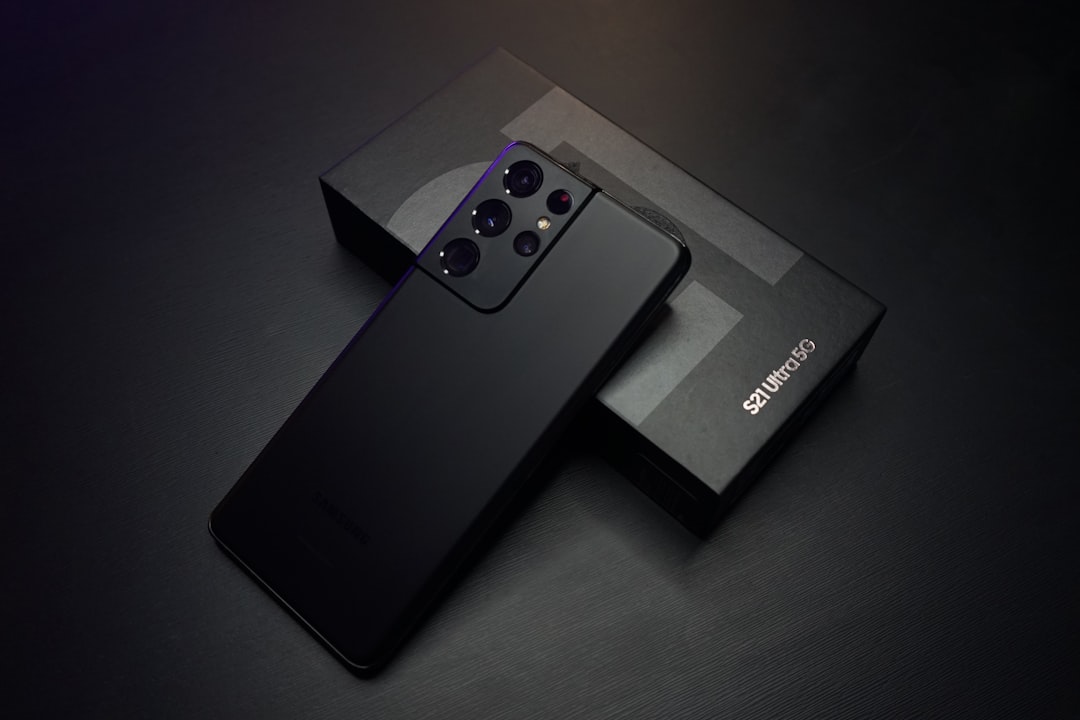
How to set up the Samsung Galaxy S26 Ultra for business in South Africa
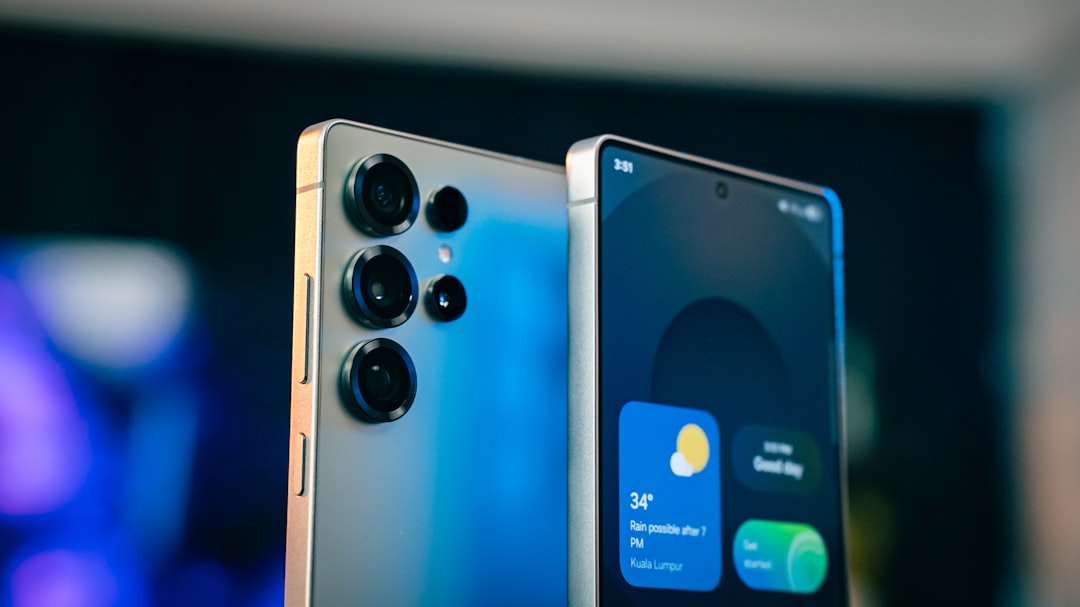
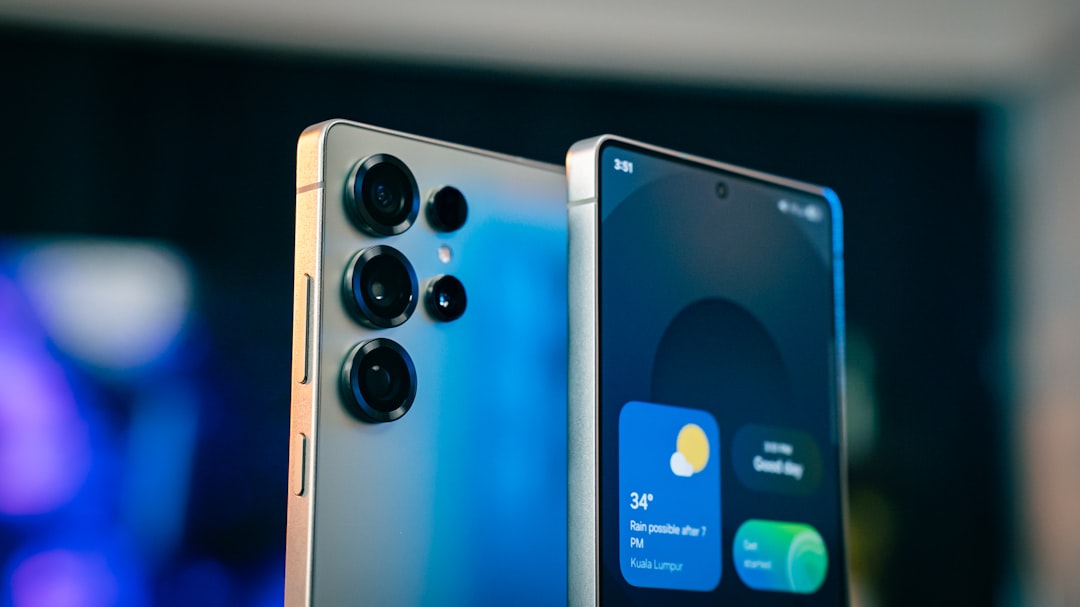
The Samsung Galaxy S26 Ultra is one of the best business phones you can buy in South Africa right now. With flagship performance, strong battery life and Samsung’s productivity tools, it can easily replace a laptop for many everyday tasks when set up correctly.
But out of the box, it is configured for general use, not for a busy professional who needs strong security, reliable battery life and fast access to work tools. If you use Vodacom, MTN, Telkom, Cell C or Rain, this guide will help you tailor the Galaxy S26 Ultra for meetings, travel, remote work and long days on the move.
1. Start with the essentials: update, sign in and back up
Before changing any settings, install the latest software updates. Samsung regularly pushes security patches and performance improvements, and that matters even more for a work phone.
- Go to Settings > Software update and tap Download and install.
- Sign in with your Samsung account to enable features like Find My Mobile and cloud sync.
- Set up Google account backup for contacts, calendar and app data.
If this is your main business device, make sure your work email, WhatsApp Business account, Microsoft 365 or Google Workspace apps are backed up and synced before you start customising everything else.
2. Lock down security first
For South African professionals, smartphone security is not optional. Your phone likely contains banking apps, client messages, documents, OTPs and email access. The Galaxy S26 Ultra has excellent security tools, but you need to switch them on.
Use a strong screen lock
Set up a PIN or password rather than a simple pattern. If you want convenience, add fingerprint unlock and face recognition as secondary options.
- Go to Settings > Lock screen and AOD > Screen lock type.
- Choose a long PIN or password for stronger protection.
- Enable Fingerprint recognition for fast access during the workday.
Turn on Samsung Find My Mobile
This is essential if your phone is lost or stolen in a taxi rank, airport lounge or office parking lot.
- Open Settings > Security and privacy > Lost device protection.
- Enable Find My Mobile, offline finding and remote unlock if you trust the feature.
Also make sure Google Find My Device is active. Having both services enabled gives you more recovery options.
Use Secure Folder for business data
Secure Folder is one of Samsung’s best features for business users. It creates an encrypted space for confidential files, work apps, banking apps or a second WhatsApp account.
- Open Settings > Security and privacy > Secure Folder.
- Set a separate PIN or biometric lock.
- Move sensitive documents, PDFs and work apps into the folder.
This is especially useful if you share your phone with family members or want to keep client files separate from personal content.
Protect against phishing and unsafe app installs
South Africans are frequent targets of SMS scams, fake delivery notices and banking phishing links. Reduce your risk by tightening app permissions and install settings.
- Disable Install unknown apps unless you really need it.
- Review app permissions under Settings > Security and privacy > Permission manager.
- Use Samsung Messages, Gmail or your preferred email app with spam filtering enabled.
3. Configure battery settings for a full workday
The Galaxy S26 Ultra is built for all-day use, but battery settings can make a big difference if you spend hours on calls, hotspot sharing, navigation or video meetings.
Use Adaptive Battery
Adaptive Battery learns your usage patterns and limits background drain on apps you rarely use.
- Go to Settings > Battery > Battery protection and optimisation.
- Enable Adaptive Battery and device care optimisation.
Set a sensible charging limit
If you charge overnight every day, consider using Samsung’s battery protection features to reduce long-term wear.
- Choose a charging limit such as 80% or 85% if available in your battery protection options.
- Use this if your phone spends most of the day on Wi-Fi, in an office or in the car.
This is a smart move for South African users who want the battery to stay healthy for the full lifespan of the device, especially on a premium phone that costs R30,999.
Adjust display settings for better endurance
The large display is great for productivity, but it can also drain battery faster than necessary.
- Use Adaptive brightness.
- Switch to Dark mode for a more comfortable experience and lower power usage on many apps.
- If you do not need the absolute smoothest animation all day, consider lowering the refresh rate only if Samsung offers a power-saving display option in your software version.
Prepare for load shedding and long commutes
In South Africa, battery planning is not just about convenience. It is about staying connected during load shedding, traffic delays and power interruptions.
- Keep a 20,000mAh power bank in your bag.
- Use a USB-C fast charger in the office and car.
- Download offline maps, key documents and presentation files before travelling.
4. Optimise productivity tools for real work
The Galaxy S26 Ultra is at its best when you use Samsung’s productivity features properly. These settings can help you work faster and switch between tasks with less friction.
Set up Samsung DeX
Samsung DeX turns your phone into a desktop-style workspace when connected to a monitor, TV or laptop-compatible setup. It is ideal for email, documents, spreadsheets and presentations.
- Open Settings > Connected devices > Samsung DeX.
- Test wireless DeX if you have a compatible display.
- Keep a USB-C hub or adapter in your office bag.
For many South African small business owners, this is a practical way to work from a hotel room, client site or co-working space without carrying a full laptop.
Use split screen and pop-up view
On a large screen like the Galaxy S26 Ultra’s, multitasking is one of the biggest productivity wins.
- Use split screen for email and calendar, or WhatsApp and Chrome.
- Use pop-up view for quick replies while keeping your main app open.
This is especially useful for sales teams, consultants and managers who need to respond quickly while reviewing documents.
Customise the side key and quick panel
Save time by assigning useful actions to the side key and quick settings.
- Set the side key to open camera, voice assistant or a frequently used app.
- Pin shortcuts for Hotspot, Bluetooth, Mobile data, Dark mode and Do not disturb in the quick panel.
For business users on MTN or Vodacom, quick hotspot access is especially useful when your laptop needs internet on the road.
Set Work Mode and Do Not Disturb
Samsung’s modes and routines can help separate business time from personal time.
- Create a Work Mode that silences social apps and keeps business notifications active.
- Use Do Not Disturb during meetings or after hours.
- Allow calls from important contacts such as your office, family or security provider.
5. Make connectivity reliable on South African networks
Whether you use Vodacom, MTN, Telkom, Cell C or Rain, a business phone should stay connected as much as possible. Set up your mobile data and Wi-Fi behaviour carefully.
- Save your office Wi-Fi and home Wi-Fi networks as trusted connections.
- Use Wi-Fi calling if your network and plan support it.
- Enable Data Saver if you are on a limited business bundle.
- Check Dual SIM or eSIM options if you want one line for work and one for personal use.
For frequent travellers, a second SIM can be a practical backup. For example, you might keep your main business line on Vodacom or MTN and use a secondary data SIM from Rain or Telkom for office and home use, depending on coverage in your area.
6. Final business setup checklist
Once the essentials are in place, do a final review so the phone is ready for daily use.
- Enable automatic updates for apps.
- Install only the work apps you actually need.
- Set up calendar syncing for meetings and reminders.
- Turn on notification categories so only important work alerts break through.
- Test your backup and restore options before you rely on the phone fully.
If you want the Samsung Galaxy S26 Ultra to perform like a true business device, the secret is not adding more apps — it is setting smart boundaries, protecting your data and reducing distractions. With the right business settings, South African professionals can turn this flagship into a secure, dependable office in their pocket.