How to Switch from iPhone to Samsung Galaxy S26 in South Africa Without Losing Photos, WhatsApp Chats or Contacts
Quick answer
Moving from iPhone to Samsung Galaxy S26 is easier than ever, but only if you prepare properly. Here’s how South Africans can transfer photos, contacts and WhatsApp chats safely.
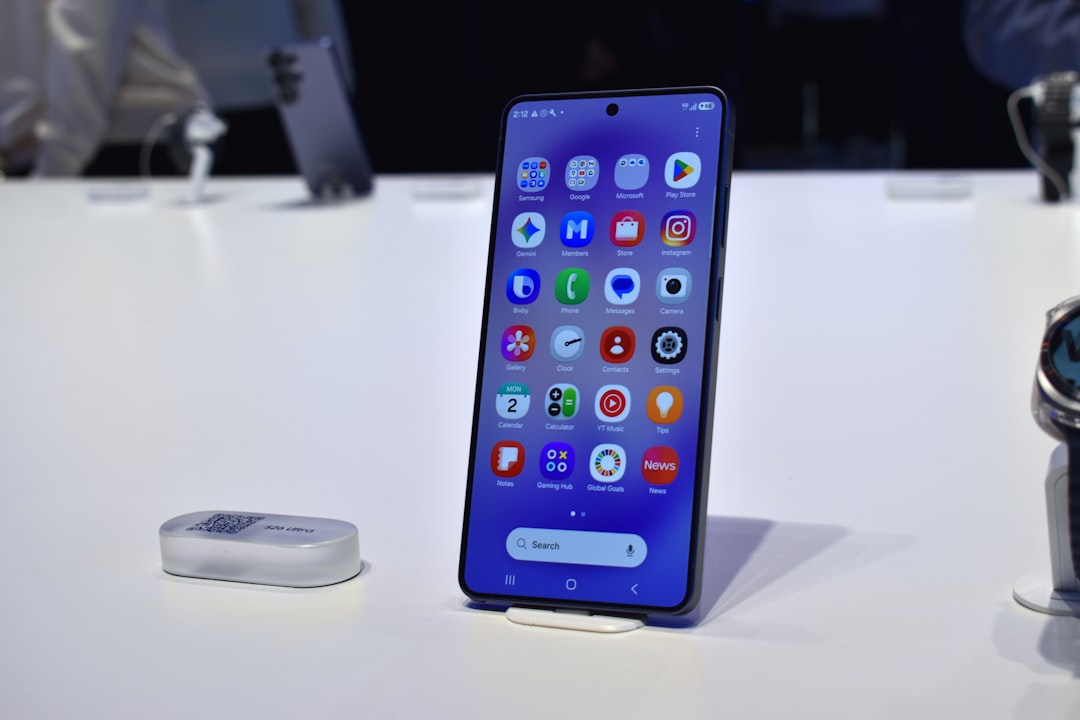
How to switch from iPhone to Samsung Galaxy S26 in South Africa without losing your data
Switching from an iPhone to the Samsung Galaxy S26 is a big upgrade for many South Africans, especially if you want Samsung’s latest flagship features, Android flexibility and strong local support from networks like Vodacom, MTN, Telkom, Cell C and Rain. The good news is that you can move your photos, contacts and even WhatsApp chats to Samsung without too much stress, as long as you follow the right steps.
The key is to prepare before you wipe your iPhone or insert your new SIM into the Galaxy S26. If you rush the process, you could lose precious memories, important business contacts or years of chat history. Here is a practical, South Africa-friendly guide to help you make the switch safely.
What you should do before you start
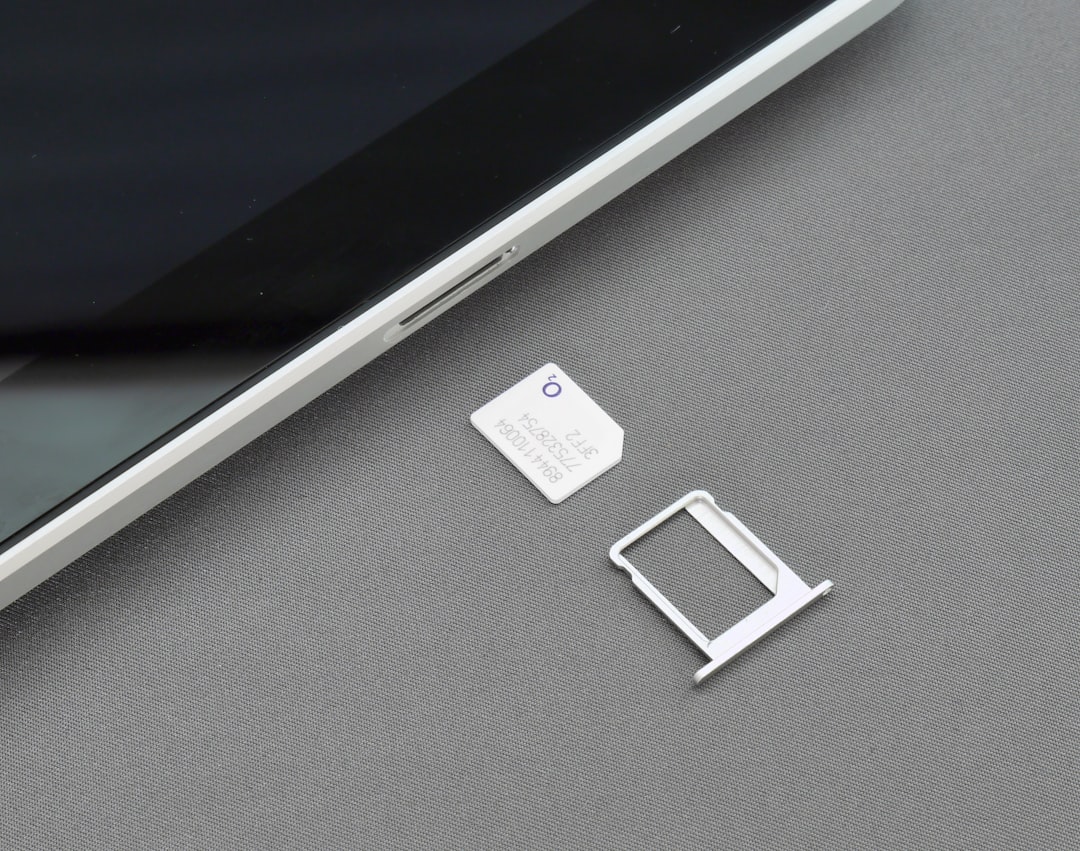
Before you begin, make sure you have both phones charged, connected to stable Wi-Fi and updated to the latest software. If you are on a prepaid or contract plan with a local network, keep your SIM active until the transfer is complete. If you are moving to an eSIM on the Galaxy S26, check with your network first to confirm support and activation steps.
You will also need:
- Your iPhone and your new Samsung Galaxy S26
- A Lightning cable or USB-C cable, depending on your iPhone model and transfer method
- Your Apple ID password
- Your Google account login details
- Enough free storage on the Galaxy S26 for your photos, videos and apps
Tip for South Africans: If you are on limited mobile data, do the transfer over Wi-Fi at home or at work. Moving large photo libraries and WhatsApp backups can use a lot of data.
Step 1: Back up your iPhone properly
Even though Samsung’s transfer tools are very good, you should always create a fresh backup first. On your iPhone, go to Settings, tap your name, then open iCloud and confirm that iCloud Backup is turned on. Tap Back Up Now and wait for it to finish.
If you have a lot of photos or videos, make sure your iCloud storage is sufficient. If not, you may need to upgrade temporarily for the transfer period. You can cancel later if you do not want to keep the extra storage.
Step 2: Use Samsung Smart Switch to move your data
The easiest way to switch from iPhone to Samsung is with Samsung Smart Switch. This app is built into the Galaxy S26 setup process and is designed to move data from iPhone to Android with minimal hassle.
During the Galaxy S26 setup, choose the option to transfer data from an iPhone. You can connect the two phones using a cable or transfer wirelessly, depending on what is available. Cable transfer is usually faster and more reliable, especially if you are moving a large number of photos and videos.
Smart Switch can transfer:
- Contacts
- Photos and videos
- Calendar events
- Messages
- Notes
- Some app data
Important: Not every iPhone app will move over in the exact same way. You may need to reinstall Android versions of your favourite apps from the Google Play Store and log in again.
Step 3: Transfer photos from iPhone to Android
For many people, the biggest concern is how to transfer photos iPhone to Android without losing quality or missing files. Smart Switch is the simplest route because it copies your camera roll directly to the Galaxy S26 Gallery app.
If you use iCloud Photos, make sure all your images are fully downloaded or available for transfer. If some photos only live in iCloud and are not stored on the iPhone itself, they may not move properly unless you handle them first. Open the Photos app on your iPhone and confirm that your most important images are present on the device.
For a safer backup, you can also use Google Photos. Install Google Photos on your iPhone, sign in with your Google account and back up your library before switching. Then sign into the same Google account on your Galaxy S26 and your photos will appear there too. This is a useful extra layer of protection if you want peace of mind.
Step 4: Move contacts to your Samsung Galaxy S26
Your contacts are usually the easiest part of the switch. If your contacts are synced with iCloud, you can export them to Google Contacts or transfer them through Smart Switch.
The most reliable method is to make sure your iPhone contacts are synced to iCloud, then sign into your Google account on the Galaxy S26 and sync contacts there. You can also go to Settings > Contacts > Accounts on your iPhone and check which account is storing your contact list.
If you use a work account, school account or business CRM, make sure those contacts are backed up separately as well. Many South Africans use their phones for both personal and business communication, so losing contacts can be costly.
Step 5: Move WhatsApp chats to Samsung
One of the most important steps is learning how to move WhatsApp chats to Samsung without losing message history. WhatsApp now supports transfer from iPhone to Android, and Samsung Galaxy devices are well supported.
To do this properly, both phones should use the same phone number. You will usually need to connect the iPhone and Galaxy S26 with a cable during setup or follow the WhatsApp transfer prompt. On the iPhone, open WhatsApp and go to Settings > Chats > Move Chats to Android if the option is available. Then follow the on-screen instructions on the Samsung side.
Before you start, make sure:
- WhatsApp is updated on both phones
- The same phone number will be used on the Galaxy S26
- The Samsung setup process is not skipped
- The iPhone stays unlocked during transfer
After the transfer, install WhatsApp on your Galaxy S26, verify your number and allow the import process to complete. Your chat history should appear, including photos and voice notes in most cases.
Note: WhatsApp backup methods differ between iPhone and Android. An iPhone iCloud backup cannot simply be restored onto Android, so use the built-in transfer process instead of relying on cloud backup alone.
Step 6: Reinstall apps and sign in safely
Once your core data is moved, download your regular apps from the Google Play Store. These may include banking apps, travel apps, streaming services and social media. South Africans should pay special attention to banking apps, because many require a fresh device registration or security verification when you move to a new phone.
Before logging in, make sure you know your passwords and have access to your OTPs. If your bank uses app-based verification, you may need your old phone for a final approval step. Do not erase the iPhone until your banking apps are fully working on the Galaxy S26.
Step 7: Check your messages, photos and accounts before wiping the iPhone
Do not factory reset your iPhone immediately after transfer. Take time to check that everything arrived correctly on the Galaxy S26:
- Open your Gallery and confirm your photos and videos are there
- Check your Contacts app for missing names or numbers
- Open WhatsApp and confirm your chats loaded
- Test your banking and email apps
- Make sure your SIM or eSIM is working on the new phone
If something is missing, fix it before you erase the iPhone. It is much easier to recover data while the old device is still intact.
Common problems and how to avoid them
Problem 1: Photos did not transfer. This usually happens when images were only stored in iCloud. Make sure the photos are downloaded to the iPhone first, or use Google Photos as a backup.
Problem 2: WhatsApp chats are missing. This often happens when the transfer process was skipped or the numbers do not match. Use WhatsApp’s official transfer feature and keep the same number.
Problem 3: Contacts are incomplete. Check whether your contacts were saved to the SIM card, iCloud or another account. Sync them to Google before switching.
Problem 4: Mobile data is too slow. If you are on a busy network or limited data bundle, use home Wi-Fi. In South Africa, that can save time and money, especially if you are moving many gigabytes of media.
Should you use a cable or wireless transfer?
For most people, a cable transfer is better. It is faster, more stable and less likely to fail halfway through. Wireless transfer can work well for smaller libraries, but if you have thousands of photos or years of WhatsApp chats, cable is the safer choice.
If you are buying your Galaxy S26 on contract from Vodacom, MTN, Telkom or Cell C, ask the retailer or store staff to help you with the initial setup. Many Samsung stores and carrier outlets can guide you through Smart Switch on the spot.
Final thoughts
Switching from iPhone to Samsung Galaxy S26 does not have to mean losing your memories or messages. With a proper backup, Samsung Smart Switch, Google account sync and WhatsApp’s official transfer tool, you can move across smoothly and keep your digital life intact.
If you are upgrading in South Africa, take your time, use Wi-Fi, and only wipe your old iPhone once you have confirmed that everything is safely on your new Galaxy S26. Done properly, the switch is straightforward and well worth it.