How to Switch from iPhone to Samsung Galaxy S26 in South Africa Without Losing WhatsApp Chats, Photos and Contacts

How to switch from iPhone to Samsung Galaxy S26 in South Africa without losing WhatsApp chats, photos and contacts
If you’re planning to switch from iPhone to Samsung, the good news is that moving to the Galaxy S26 is much easier in 2026 than it used to be. Samsung, Apple and WhatsApp now support better transfer tools, which means you can bring most of your important data across without starting from scratch.
For South African users, the process is especially worth doing carefully because mobile data can be expensive on Vodacom, MTN, Telkom, Cell C and Rain. The best approach is to use Wi-Fi, keep both phones charged, and make sure you have enough storage on the new Samsung before you begin.
What you can transfer from iPhone to Galaxy S26
Before you start, it helps to know what usually moves across successfully. In most cases, you can transfer:
- WhatsApp chats, including media in many cases
- Photos and videos from your iPhone camera roll
- Contacts
- Calendar entries
- Messages from certain apps and accounts
- Files and documents stored locally
Some app data, passwords and Apple-specific services may not transfer automatically, so it is wise to back up everything first.
Step 1: Prepare both phones before you start
Preparation is the difference between a smooth move and a frustrating one. Before you begin, do the following:
- Charge both phones to at least 50%
- Connect both devices to a stable Wi-Fi network
- Make sure your new Galaxy S26 has enough storage
- Update iOS on your iPhone and Android software on the Samsung if needed
- Keep your iPhone SIM or eSIM active until everything is confirmed
If you are using mobile data instead of Wi-Fi, remember that transferring large photo libraries can consume a lot of data. On South African networks, that can become costly very quickly, especially if your WhatsApp backups and camera roll are large.
Step 2: Back up your iPhone properly
Even if you plan to move everything directly, always create a backup first. On iPhone, you can back up to iCloud or to a computer using Finder or iTunes. This gives you a safety net if something goes wrong during the transfer.
For photos, make sure iCloud Photos is synced if you use it. For contacts, check that they are stored in iCloud or your Google account, not only on the device. You can verify this in Settings > Contacts > Accounts.
If you use iCloud Drive, Notes, or Mail, check whether those services are also synced so you know what is coming across and what will stay in Apple’s ecosystem.
Step 3: Transfer WhatsApp chats to Samsung
This is the part most people worry about when they transfer WhatsApp chats to Samsung. Fortunately, WhatsApp now supports moving chat history from iPhone to Android using Samsung’s setup tools and a cable connection.
Here’s the simplest method:
- Set up your Galaxy S26 until you reach the data transfer stage
- Use a USB-C to Lightning cable or the transfer method prompted by Samsung
- When asked, choose to transfer data from iPhone
- Follow the on-screen instructions on both devices
- During setup, WhatsApp should prompt you to move your chat history
To make the transfer work, both phones usually need to be on the same Wi-Fi network or connected by cable, and you must use the same phone number on the Samsung that was used on the iPhone.
After the transfer, install WhatsApp on the Galaxy S26, verify your number, and check that your chats appear. If you also want media such as photos, voice notes and videos to move over, keep the phones connected until the process is fully complete.
Important: Do not delete WhatsApp from your iPhone until you have confirmed that your chat history is visible on the Samsung and that your recent messages are there.
Step 4: Move photos from iPhone to Android
If you want to move photos from iPhone to Android, Samsung’s Smart Switch is usually the easiest route. During setup, Smart Switch can copy your camera roll, videos and some albums directly to the Galaxy S26.
You can also use Google Photos if you prefer a cloud-based method:
- Install Google Photos on your iPhone
- Sign in with your Google account
- Turn on Backup
- Wait for your photos and videos to upload over Wi-Fi
- Sign into Google Photos on the Galaxy S26 to access them
This method is useful if you have a large library or want to keep your photos accessible across devices. It is also a smart choice if you are moving on a slower home connection and want to let the upload run overnight.
If your iPhone uses iCloud Photos, you may also want to download originals to your device before transferring, so Smart Switch can copy the full-resolution files rather than just thumbnails.
Step 5: Transfer contacts from iPhone to Samsung
Contacts are usually one of the easiest things to move. If your contacts are synced to iCloud, Google, or another account, simply sign into that same account on the Galaxy S26 and enable contact sync.
If your contacts are only on the iPhone, you can export them by syncing them to iCloud and then importing them on Android. Another option is to use Samsung Smart Switch during setup, which can copy contacts directly.
To check your contacts on iPhone:
- Go to Settings
- Tap your Apple ID
- Open iCloud
- Make sure Contacts is switched on
Once you sign in on the Galaxy S26 with your Google account, your contacts should appear if they were synced properly. If you rely on your contacts for work, school or family groups, verify a few key numbers before you switch off the iPhone.
Step 6: Use Samsung Smart Switch for the easiest migration
For most people, Samsung Smart Switch is the best tool when switching from iPhone to Samsung. It is designed to bring over data with minimal effort and is built into the Galaxy S26 setup flow.
Smart Switch can help transfer:
- Contacts
- Photos and videos
- Messages
- Calendar events
- Call logs
- Some app data
You can transfer wirelessly or with a cable, but a wired transfer is usually faster and more reliable, especially if you have lots of media. For South African users on capped home fibre or limited mobile data, cable transfer is also the more practical choice.
Step 7: Check your apps, banking and SIM or eSIM
Once your main data is on the Galaxy S26, spend a few minutes checking the essentials. Reinstall your banking apps, ride-hailing apps, delivery apps and loyalty apps. In South Africa, that may include apps from your bank, Takealot, Uber, Bolt, Pick n Pay, Woolworths and your network provider.
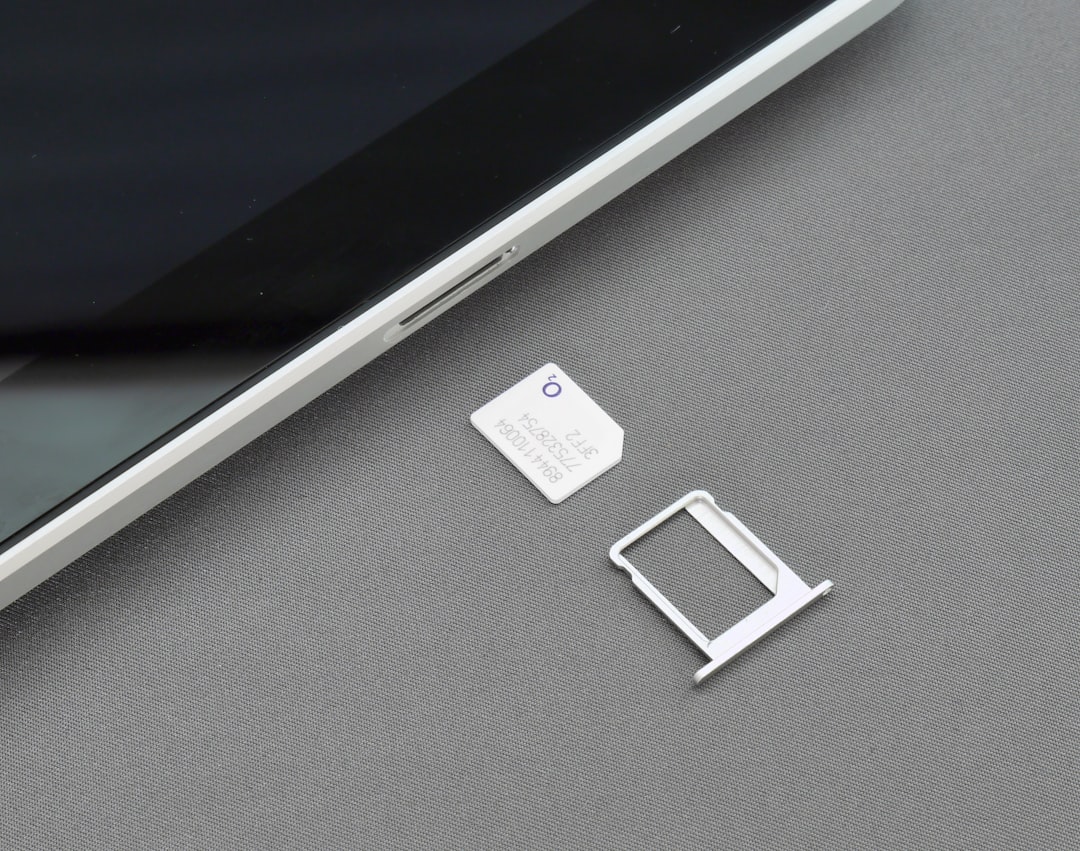
If you are moving from a physical SIM to eSIM, or from eSIM back to physical SIM, contact your network if needed. Vodacom, MTN, Telkom, Cell C and Rain all support different SIM and eSIM processes, and some account changes may require verification in-store or through the network app.
Also remember that Apple services such as iMessage and FaceTime should be turned off or deregistered on the iPhone if you plan to stop using it. This helps prevent messages from getting stuck on your old Apple number instead of reaching your new Samsung.
Common mistakes to avoid
Many people run into trouble because they rush the process. Avoid these mistakes:
- Deleting WhatsApp from the iPhone before confirming the transfer
- Using low battery on either phone
- Trying to transfer huge photo libraries over mobile data
- Changing SIMs too early
- Skipping the backup step
If the transfer fails, do not panic. Check that both phones are updated, restart them, and try again with a cable and stable Wi-Fi. In most cases, the issue is a connection problem rather than lost data.
Final checklist before you wipe the iPhone
Before you sell, trade in or hand down your iPhone, confirm that the following are on your Galaxy S26:
- Your WhatsApp chat history
- Your photos and videos
- Your contacts
- Your calendar
- Your banking and essential apps
- Your SIM or eSIM working correctly
Only once you are satisfied should you sign out of your Apple ID, turn off Find My iPhone, and erase the old device. If you plan to trade it in, a clean reset can also improve the value you get from the retailer or network.
Bottom line
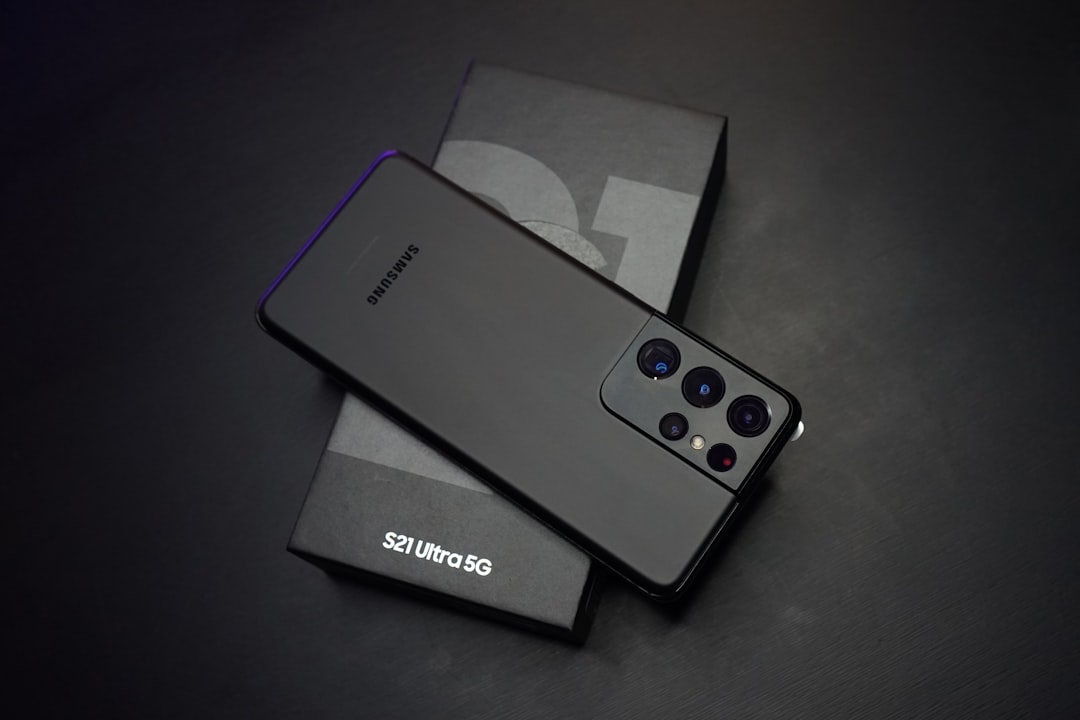
Switching from iPhone to Samsung Galaxy S26 in South Africa is straightforward if you prepare properly and use the right tools. With Smart Switch, WhatsApp’s transfer support and a solid backup strategy, you can move your digital life across without losing the things that matter most.
If you are ready to make the jump, take your time, use Wi-Fi, and verify each step before wiping your old phone. That way, your new Galaxy S26 starts fresh, but your memories and messages come with you.