How to Set Up Your Samsung Galaxy S26 Ultra in South Africa: Best First-Day Settings, Battery Tips and Network Tweaks
Quick answer
Got a new Samsung Galaxy S26 Ultra? Here’s how to set it up properly in South Africa, with the best first-day settings, battery tips and network tweaks. Perfect for Vodacom, MTN, Telkom, Cell C and Rain users.
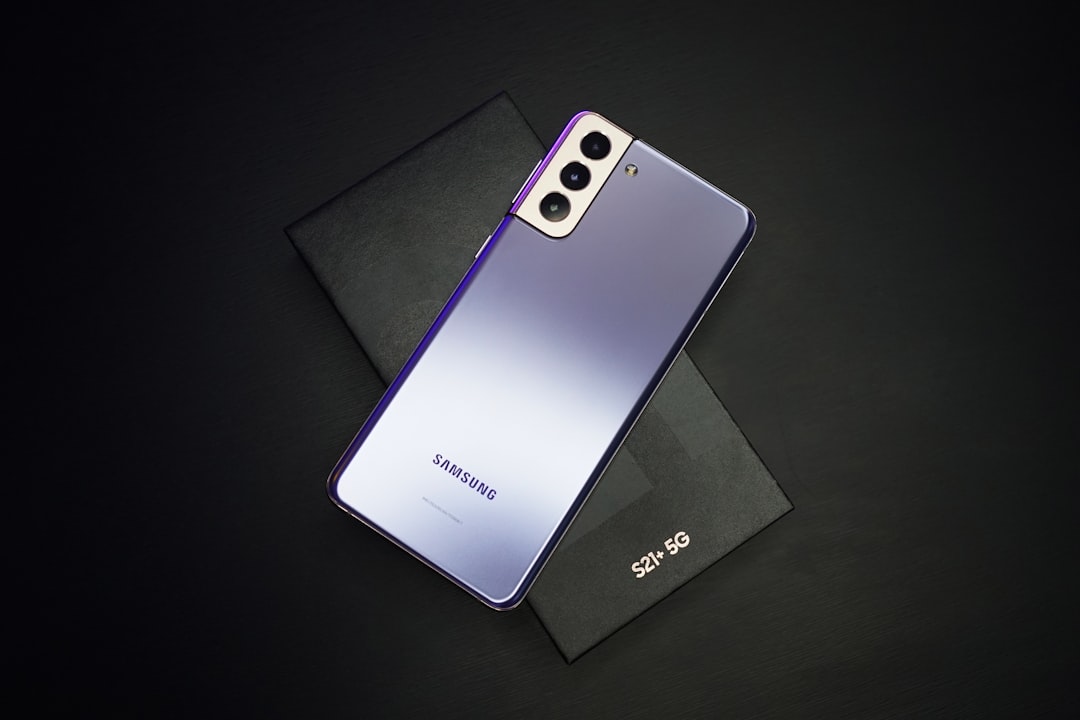
Samsung Galaxy S26 Ultra setup: start strong on day one
The Samsung Galaxy S26 Ultra is one of the most powerful phones you can buy in South Africa right now, but the best experience starts with a proper setup. If you’ve just unboxed yours, spending a few minutes on the right settings can improve battery life, protect your data, and make the phone feel faster and more reliable from the start.
This guide covers the most useful Galaxy S26 Ultra tips for South African users, including how to get the best performance on Vodacom, MTN, Telkom, Cell C and Rain. We’ll also look at the best settings for Galaxy S26 Ultra if you want a balance of speed, battery life and mobile data efficiency.
1. Set up your Samsung account, Google account and security first
During the initial setup, sign in with your Samsung account and Google account so you can restore apps, sync photos and use features like Find My Device. If you’re upgrading from another Samsung phone, Smart Switch makes migration easier and can move contacts, messages, apps and even some settings.
Once setup is complete, go straight to Settings > Security and privacy and enable the basics:
- Fingerprint unlock for quick and secure access
- Face recognition as a convenient backup
- Auto Blocker to help protect against suspicious app installs and USB attacks
- Find My Mobile so you can locate or lock the phone if it goes missing
In South Africa, phone theft is a real concern, so this is one of the most important first-day steps. Also set a strong PIN, not just a simple pattern.
2. Check for updates before you do anything else
Before downloading apps or restoring a backup, go to Settings > Software update > Download and install. Samsung often ships phones with early firmware that gets improved quickly after launch. Updating first can fix bugs, improve camera performance and optimise battery life.
After the main system update, open the Galaxy Store and Google Play Store to update Samsung apps, Google services and any preloaded apps. This helps avoid glitches later.
3. Choose the best display settings for battery and comfort
The Galaxy S26 Ultra’s display is one of its biggest strengths, but the default settings may not be ideal for everyone. For most South African users, a few display tweaks can make a big difference.
Go to Settings > Display and consider these changes:
- Motion smoothness: Keep it on adaptive if you want the smoothest experience, but switch to standard if battery life is more important
- Screen resolution: Use the default or balanced option unless you need the sharpest possible display all the time
- Dark mode: Turn it on, especially if you use your phone at night or want slightly better battery efficiency
- Extra brightness: Leave it off unless you’re outdoors in bright sunlight
- Adaptive brightness: Turn it on so the phone learns your preferences over time
If you spend a lot of time commuting, using your phone in taxis, or checking maps outdoors, adaptive brightness is especially useful.
4. Improve battery life from the first day
The Galaxy S26 Ultra has a large battery, but flagship power can still drain quickly if you leave everything on. The best battery strategy is to reduce unnecessary background activity without making the phone feel restricted.
Open Settings > Battery and device care > Battery and enable:
- Power saving mode only when you need it, such as during load shedding or long travel days
- Adaptive battery to limit apps you rarely use
- Put unused apps to sleep so they don’t drain power in the background
Then check your app permissions. Social media, shopping and food delivery apps often request location access even when they don’t need it. Set location access to Only while using the app where possible.
For South African users dealing with power cuts, it’s also smart to keep a small power bank in your bag and use a quality USB-C cable. If you charge overnight, consider enabling Protect battery so the phone doesn’t sit at 100% for too long.
5. Set up charging the smart way
Samsung’s fast charging is convenient, but battery health matters if you plan to keep the phone for years. Use a good-quality charger that supports Samsung fast charging properly, and avoid cheap uncertified accessories.
For the best balance between speed and battery longevity, go to Settings > Battery > More battery settings and check the charging options available on your device. If you often charge at your desk or overnight, battery protection features are worth enabling.
Also avoid charging the phone in very hot places, such as in direct sunlight on a car dashboard. Heat is one of the biggest causes of long-term battery wear.
6. Get the best mobile network settings for South Africa
One of the most important Samsung Galaxy S26 Ultra setup steps is making sure your network settings match your SIM and the coverage in your area. South Africa’s networks vary by location, so the best option for one user may not be best for another.
Go to Settings > Connections > Mobile networks and check the following:
- Network mode: Leave it on 5G/LTE/3G/2G auto if you have a 5G or LTE plan and good coverage
- VoLTE: Turn it on if your network supports it for clearer calls and better call reliability
- Wi-Fi calling: Enable it if your network and plan support it, especially useful in weak-signal areas
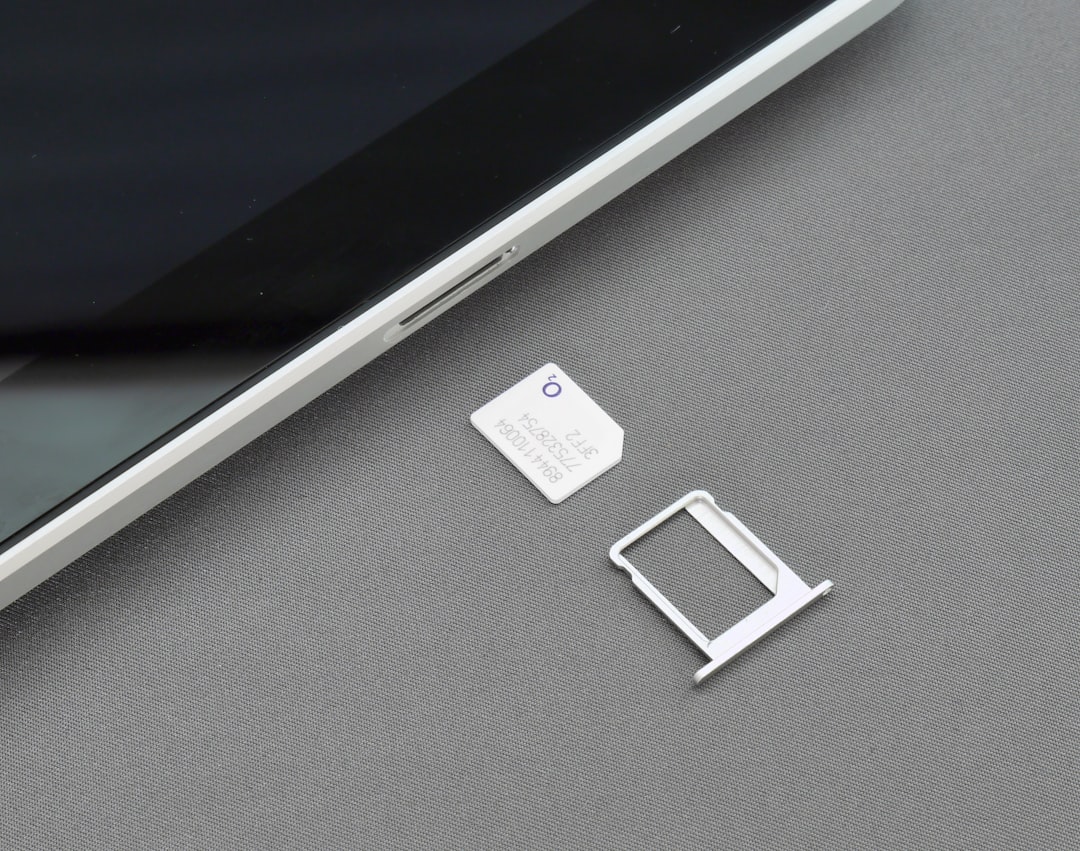
- APN settings: Usually automatic, but worth checking if mobile data does not work after inserting your SIM
If you use Vodacom or MTN and live in a strong 5G area, keeping 5G on makes sense. If you’re on Telkom, Cell C or Rain, your best setting may depend more on signal quality and data package than raw network mode. In weaker coverage areas, forcing 5G can sometimes drain battery faster without improving speed, so test auto mode first.
If calls are dropping or data feels unstable, try toggling airplane mode on and off, then restart the phone. That often forces the modem to reconnect more cleanly.
7. Use data-saving and roaming settings wisely
South Africans often move between home Wi-Fi, office Wi-Fi and mobile data, so it helps to manage data use from day one. Go to Settings > Connections > Data usage and enable Data saver if you want to reduce background usage.
If you travel across borders or use roaming SIMs, make sure Data roaming is only enabled when needed. Roaming charges can get expensive quickly, especially if you forget to switch it off after a trip.
For dual-SIM users, set your main data SIM explicitly under SIM manager. That prevents the phone from using the wrong line for mobile data or calls.
8. Make One UI feel faster and cleaner
The Galaxy S26 Ultra is already fast, but a few interface changes can make it feel even more responsive. Go to Settings > Display > Navigation bar if you prefer gesture navigation, or keep buttons if that feels more familiar.
You can also reduce visual clutter by:
- Removing unnecessary widgets from the home screen
- Turning off app suggestions if you don’t use them
- Organising apps into folders by category
- Disabling notifications for apps you rarely open
Under Settings > Notifications, keep only the alerts that matter. Too many notifications not only distract you, but can also wake the phone unnecessarily.
9. Camera and storage tips for day one
The Galaxy S26 Ultra camera is one of its headline features, so it’s worth setting it up properly. Open the Camera app and check your default photo resolution, video resolution and aspect ratio. If storage is a concern, avoid using the highest settings for every shot unless you really need them.
Back up photos to Samsung Cloud, Google Photos or your preferred cloud service. South African users often rely on mobile data, so set cloud backups to run on Wi-Fi only if you want to save data.
Also check your storage under Settings > Battery and device care > Storage. If you’re moving from an older phone, delete duplicate files and old downloads early before they pile up.
10. Final checks before you start using it daily
Before you call the setup complete, do these final checks:
- Test calls, WhatsApp voice notes and mobile data on your SIM
- Confirm Wi-Fi connects properly at home and work
- Set up Samsung Wallet or your preferred payment app if you use tap-to-pay
- Review app permissions for location, camera, microphone and contacts
- Enable automatic backups so you’re protected if the phone is lost or damaged
If you bought your phone on contract from Vodacom, MTN, Telkom or Cell C, make sure the correct SIM profile is active and that your data bundle is working as expected. If you’re using Rain for data, test coverage in the places you use most, because signal quality can vary by area.
Conclusion: the best Galaxy S26 Ultra setup is the one that fits your usage
The best settings for Galaxy S26 Ultra are not about changing everything at once. They’re about making smart choices: secure the phone, update it, tune the display, manage battery use and match the network settings to your South African SIM and coverage.
Once you’ve done the basics, the Galaxy S26 Ultra becomes much easier to live with day to day. Whether you’re on Vodacom, MTN, Telkom, Cell C or Rain, these Galaxy S26 Ultra tips will help you get better battery life, fewer network headaches and a smoother overall experience from the very first day.